AI face blur, hide every face automatically
Automatic face detection blurs every face in a photo or video in one click, free and private, right in your browser.
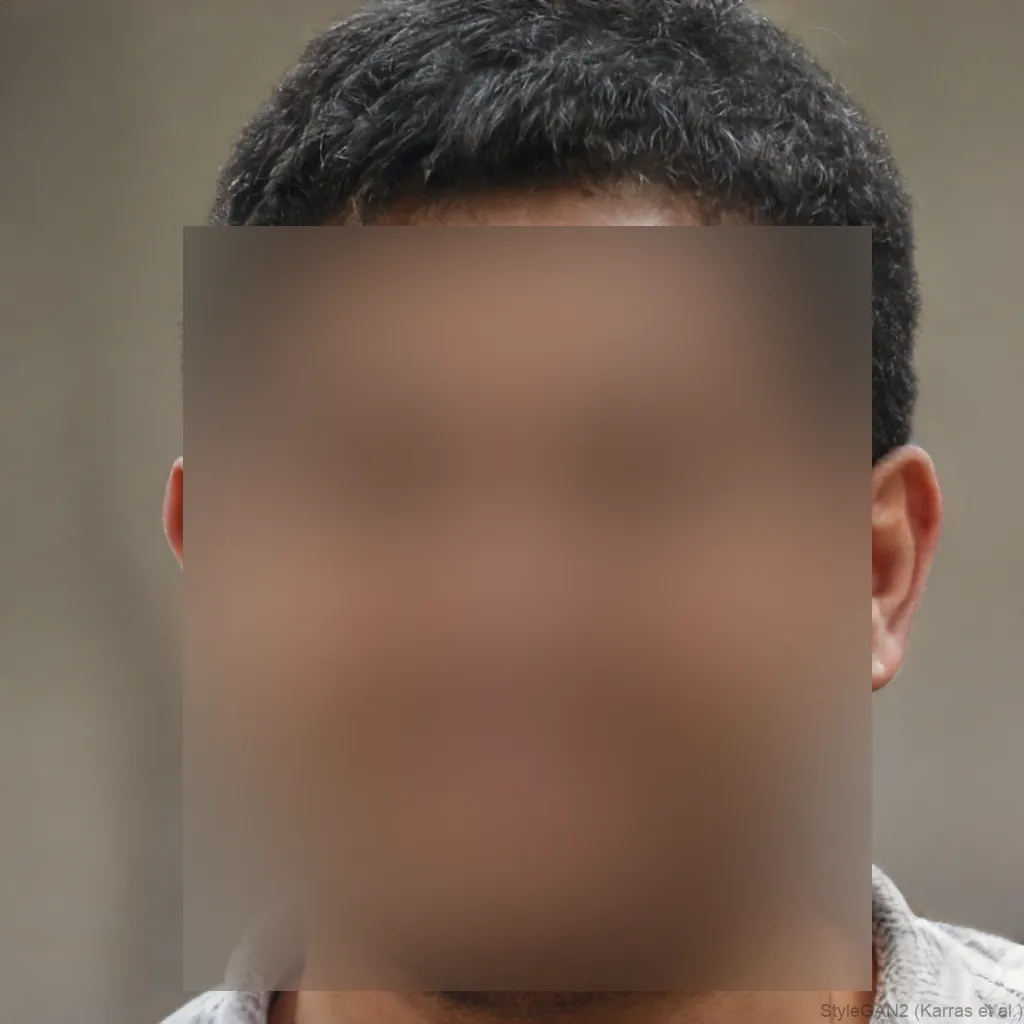
 OriginalAnonymized
Drag to compare · original vs. anonymized
Drop photos here, or click to upload
JPG, PNG or WebP · free, no watermark
Faces found for you
Automatic detection finds up to five faces per image and hides them, no boxes to draw or masks to set.
Nothing is uploaded
Face detection and blurring run entirely in your browser, so the file never leaves your device, ideal for privacy and GDPR.
One click, free
Blur, pixelate or bar every face in a single click, free and unlimited with no account.
Styles
Different ways to hide a face
Blur, pixelate, black bar, emoji and more, switch the effect and the area (eyes, mouth or whole face) with one click.
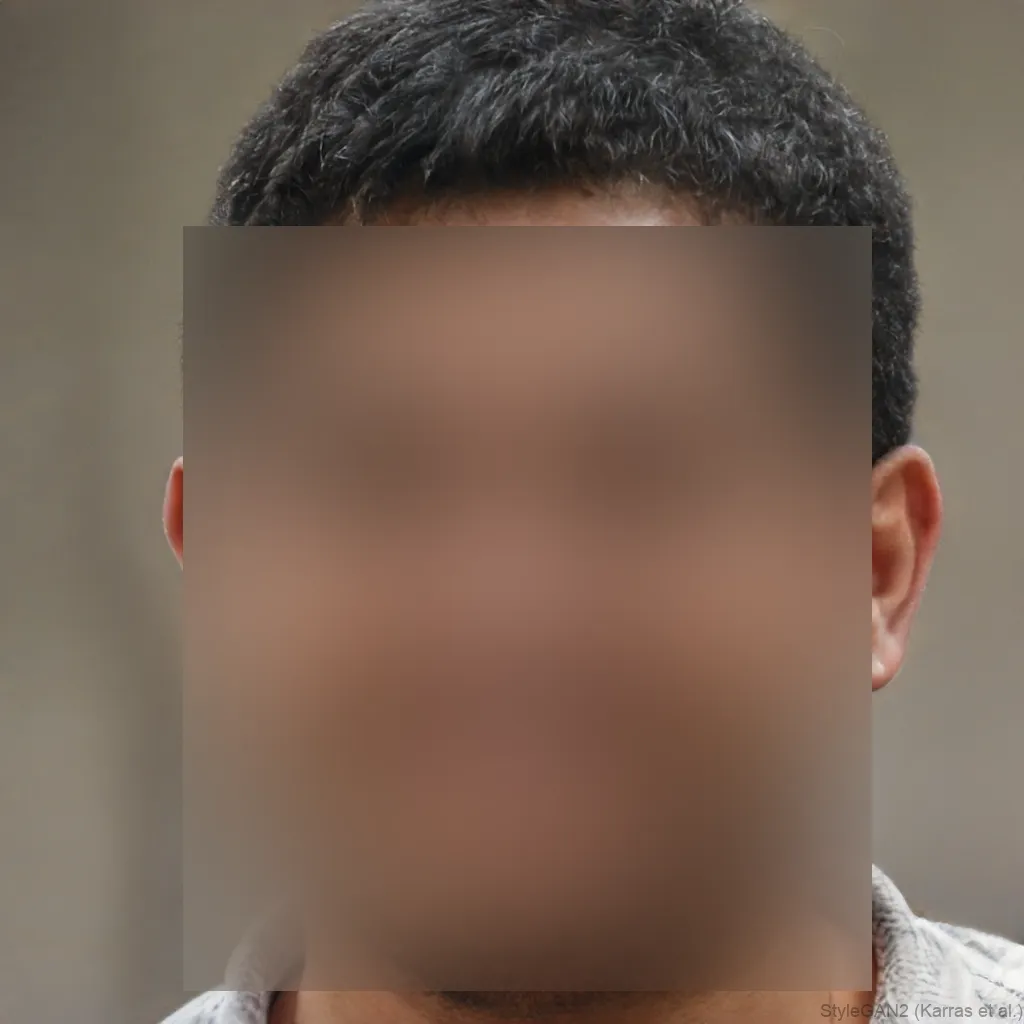

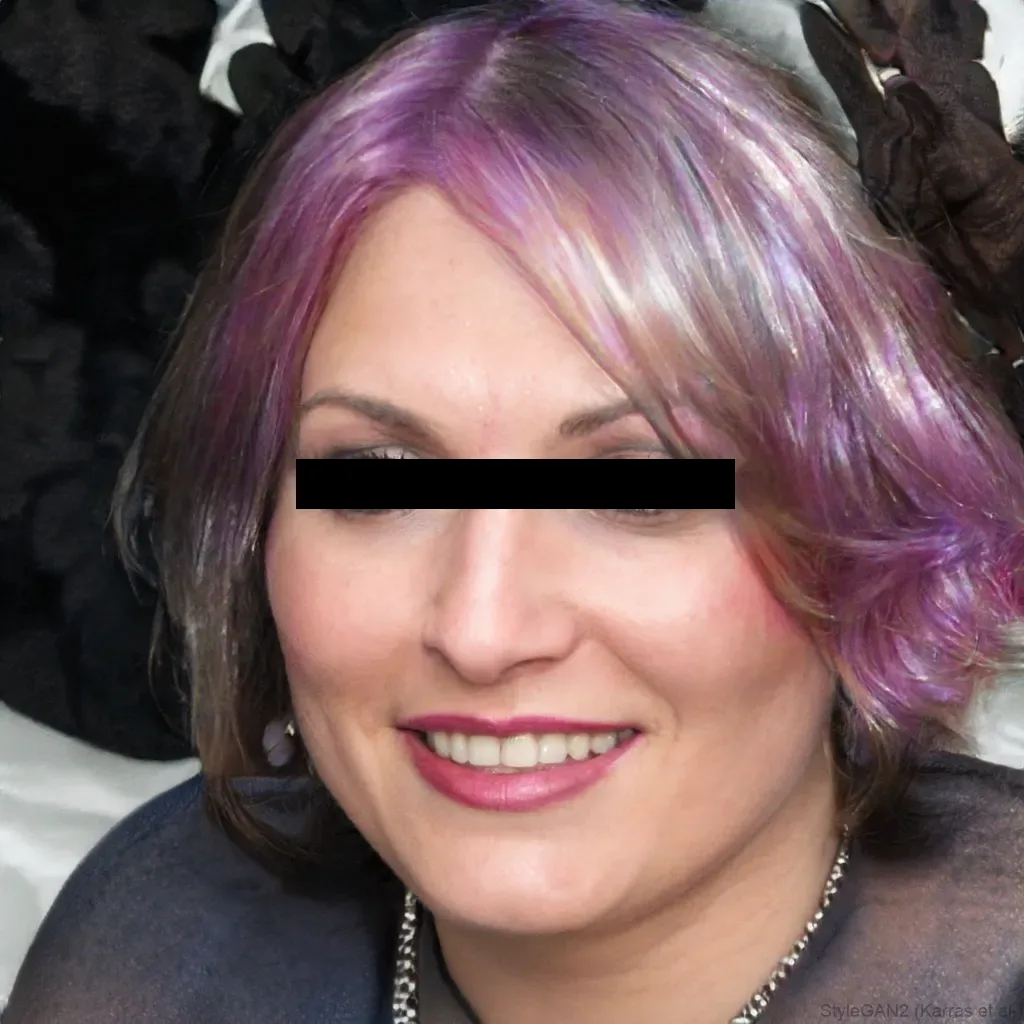
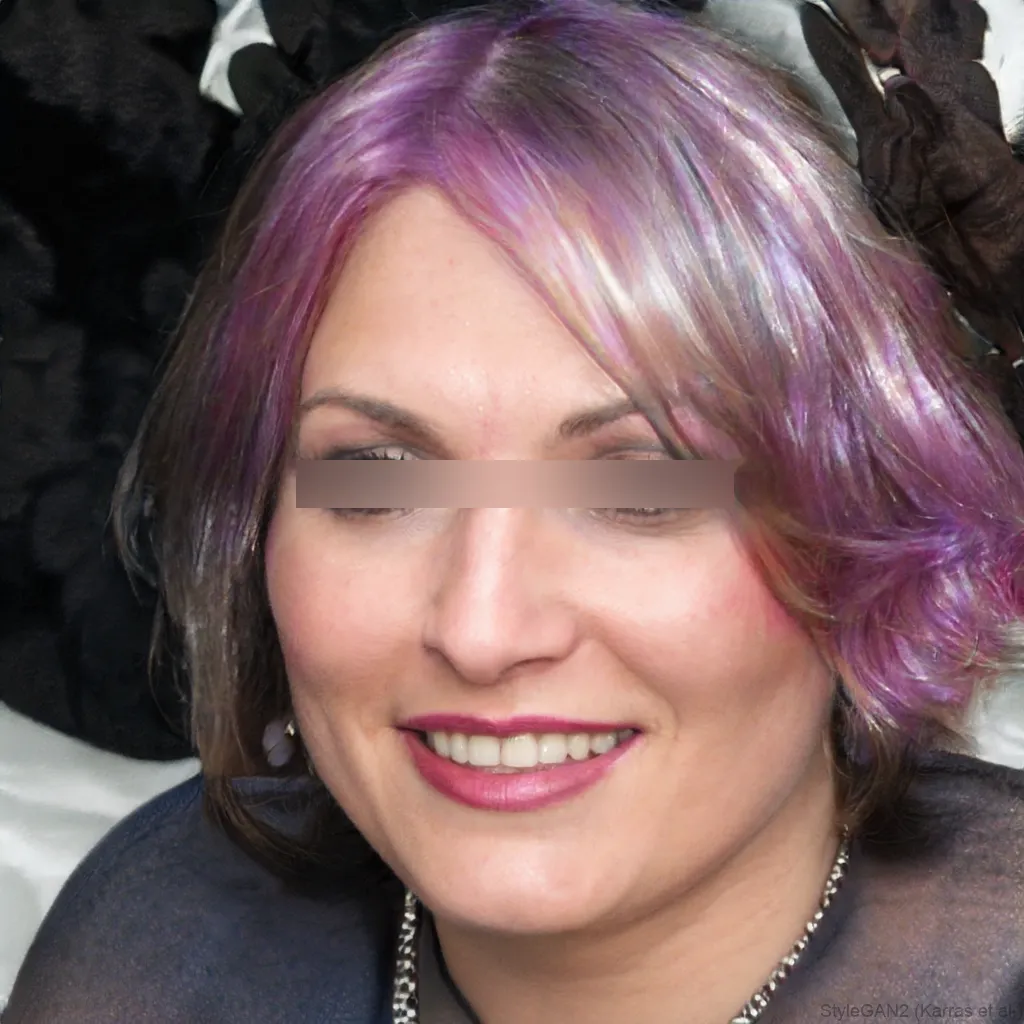
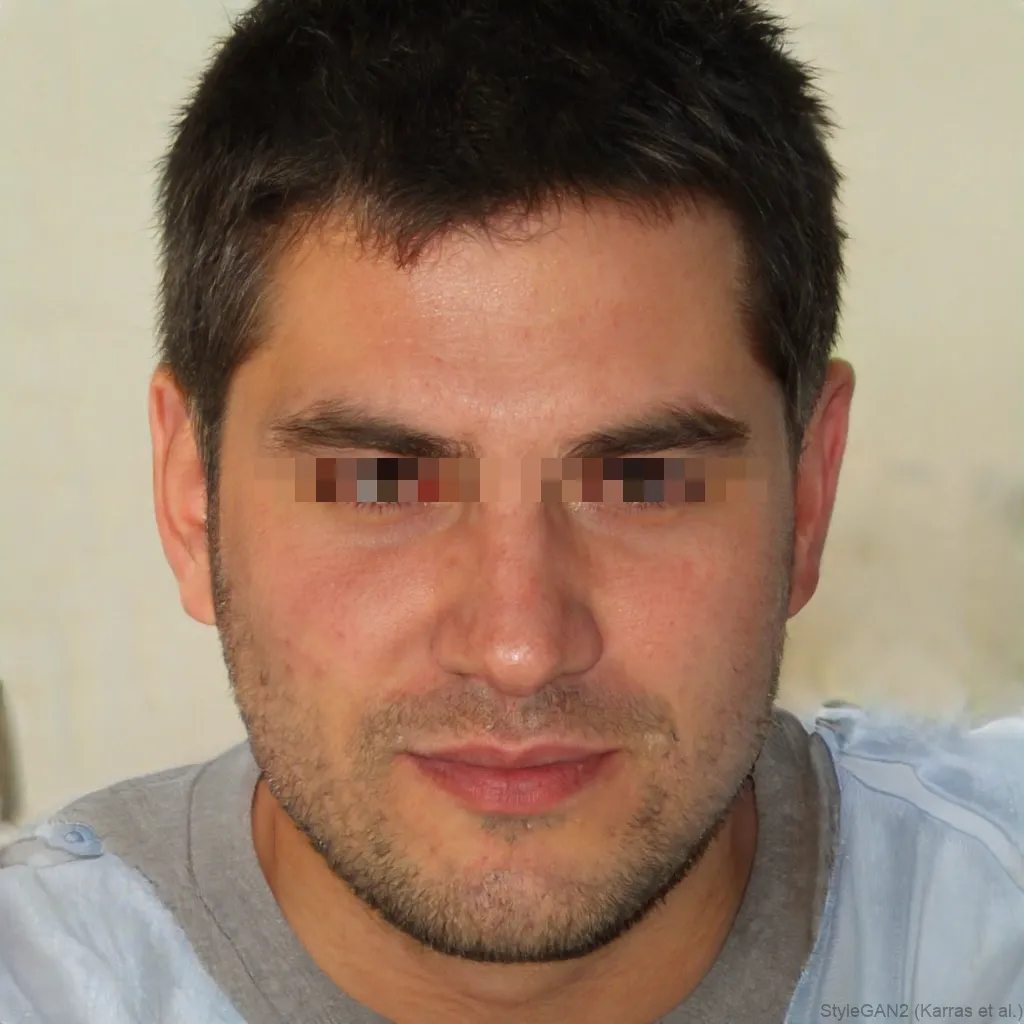
AI face blur means the tool finds the faces for you and hides them, instead of you selecting each one by hand. blurfacephotos.com detects every face in a photo or video and blurs, pixelates or bars it automatically, right in your browser. It handles up to five faces at once, so a group shot is anonymized in one pass, with nothing uploaded to a server.
Automatic does not mean your photo goes to an AI server. Detection runs on your own device, so the image never leaves your browser.
What makes it AI face blur
Older blur tools make you draw a box or a mask around each face by hand. AI face blur uses on-device face detection to locate every face in the frame first, then applies the effect to each one automatically. That is the difference between minutes of manual work and a single click, especially in a busy photo or a moving video.
AI face blur for photos and video
The same automatic detection works on still images and on video. For a photo, every face is found and blurred at once. For a clip, faces are tracked frame by frame so the blur follows each person as they move, no keyframing. You can switch the effect to pixelation or a solid bar with one click.
Is automatic face blur accurate?
Detection is robust for clear, front-facing faces and handles several at once. Very small, blurry or heavily turned faces can occasionally be missed, so it is always worth a quick review before you share. For maximum privacy, choose the whole face rather than just the eyes and turn the strength up on small faces.
Does my photo go to an AI server?
No. This is the important part: the AI runs in your browser using on-device code, so the photo or video is never uploaded, and no server, ours or anyone else's, ever sees it. You get the convenience of automatic detection without handing your images to a cloud service.
How automatic face detection actually finds faces
Automatic face blur works by scanning each image for patterns that look like a human face, things like the rough oval shape of a head, the spacing between eyes, and the position of a nose and mouth. The AI model draws an invisible bounding box around anything that matches those patterns closely enough, then refines that box using facial landmarks, small reference points placed at the eyes, nose, and mouth corners that help confirm it really is a face and not, say, a doorknob or a pattern on a shirt.
Once a face is confirmed, the box, sometimes a closer oval or mesh shape, becomes the exact area the blur, pixelation, black bar, or emoji sticker gets applied to. This all happens automatically in a fraction of a second per face, which is what separates true AI face blur from older tools that expected a person to find and mark every face by hand.
AI face blur versus older manual blur tools
Before automatic face blur existed, hiding a face in a photo meant opening an image editor, drawing a shape over the face by hand, and repeating that for every single face in the picture. That approach is slow, easy to mess up on a busy group photo, and painful once you are dealing with more than a handful of images.
An AI face blur generator removes that manual step. It detects every face on its own and sizes the blur to fit, instead of starting from a blank canvas. The result is a faster, more consistent online face blur workflow, especially useful when a photo has ten faces instead of one.
Batch anonymize many photos automatically
- Upload a whole folder of images at once instead of opening them one by one.
- The AI detects and blurs faces across every photo in the batch using the same effect and settings you choose.
- This is the fastest way to anonymize image collections from an event, a classroom, or a set of property photos.
- Because everything runs in the browser, batches stay free to a point each day before credits are needed, with no per-photo upload wait.
Who actually uses automatic face blur
- Journalists and newsrooms protecting sources or bystanders in photos and footage before publishing.
- Real estate agents and photographers removing people who wandered into listing photos or open house shots.
- Researchers and dataset builders who need to anonymize image sets in bulk while keeping the rest of the scene usable.
- Teachers and schools sharing classroom or event photos with parents without exposing every child's face.
- Everyday social media users blurring strangers, kids, or coworkers out of photos before posting.
- Security teams and dashcam owners blurring faces in footage before sharing clips publicly or handing them over as evidence.
Why on-device AI beats cloud-based face blurring
Many blur tools work by uploading your photo to a remote server, running detection there, and sending the result back. That means a copy of your original, unblurred photo, often the exact thing you are trying to protect, sits on someone else's computer at some point, even briefly.
An on-device AI face blur tool runs the entire detection and blurring process inside your own browser, using your device's processing power instead of a server. Nothing is uploaded, nothing is stored remotely, and the photo never leaves your computer or phone, which is a real privacy advantage over any cloud-based online face blur service.
Practical limits of automatic face blur
Automatic face blur is very accurate on clear, front-facing, well-lit faces, but it does have limits worth knowing. Faces that are extremely small, like distant people in a crowd photo, can fall below the size the AI reliably recognizes. Faces turned far to the side or facing away from the camera give the model less to work with than a straight-on view, and heavily blurred or motion-blurred faces from fast movement can be harder to detect for the same reason.
In these edge cases it is worth zooming into the result before you save, and turning the blur strength up or covering the whole face rather than just the eyes for anything that looks borderline.
How to do it, step by step
- 1Add your photo or videoDrop in an image or clip. It opens locally in your browser and is never uploaded.
- 2Let it detect the facesEvery face is found automatically. Pick blur, pixelate or a bar, and the area to cover.
- 3Download the resultExport the anonymized photo or video, no account needed.
Tips and common mistakes
- Use the highest resolution photo or video you have, since small or distant faces are much easier for the AI to catch when there is more detail to work with.
- For video, let the tool process the full clip rather than a single frame so the blur tracks each face as it moves.
- Increase the blur or pixelation strength for group photos or crowd scenes, since a light blur can sometimes still leave enough detail to recognize someone.
- After a batch run, scroll through every result before downloading so you can catch any turned, tiny, or motion-blurred face the AI skipped.
- If someone is only partly in frame at the edge of the shot, crop them out or cover the whole area, since a half-visible face can slip past detection.
About blurfacephotos.com
blurfacephotos.com is a free, in-browser tool for automatically finding and hiding faces in photos and video. Beyond simple blurring, it offers pixelation, solid black bars, and emoji stickers, so you can choose the look that fits your photo, whether that is a discreet blur or a more playful cover-up.
The tool handles single photos, full videos, and even a live camera feed, plus batch processing so you can anonymize image sets in one pass instead of editing each file separately. Every bit of face detection and blurring happens on your own device, nothing is uploaded to a server, which keeps the original, unblurred photo private the whole time.
It is free to use for unlimited photos, with no account and no watermark. Premium covers video export, unlimited batch and full HD.
Frequently asked questions
What is AI face blur?
AI face blur uses automatic face detection to find every face in a photo or video and hide it, so you do not have to select or mask each face by hand.
Is AI face blur free?
Yes, blurring photos is free and unlimited with no account, and the live camera is free too. Premium unlocks video export, unlimited batch and full HD.
Does AI face blur work on video?
Yes. Faces are detected and tracked across every frame, so the blur follows each person through the clip with no manual keyframing.
Is my photo uploaded to an AI server?
No. The detection runs in your browser on your own device, so the image never leaves your computer or phone and is never sent to a server.
How many faces can it blur at once?
Up to five faces per image are detected and hidden in a single pass, which is ideal for group photos.
How accurate is the automatic detection?
It is reliable for clear, front-facing faces. Small, blurry or heavily turned faces can be missed, so review the result before sharing.
Is there a truly free face blur generator online?
Yes, blurfacephotos.com works as a free face blur generator for unlimited photos, with no account and no watermark. Premium is only needed for video export, unlimited batch and full HD.
Can I anonymize image files without losing photo quality?
Yes, only the detected face areas are altered, blurred, pixelated, covered with a bar, or replaced with an emoji, while the rest of the photo keeps its original resolution and detail. This lets you anonymize image files for sharing or publishing without degrading the overall picture.
Does it work to blur faces in video automatically, or just still photos?
It handles both. The same AI face blur system that detects faces in a single photo can also scan a video frame by frame, so you can automatically blur faces in video clips, live camera streams, and batches of photos using the same on-device process.