How to pixelate a face online (no Photoshop)
Add a clean mosaic over any face in seconds, free, private, and right in your browser.

 OriginalAnonymized
Drag to compare · original vs. anonymized
Drop photos here, or click to upload
JPG, PNG or WebP · free, no watermark
Clean mosaic look
Pixelate or mosaic the face with adjustable block size for that unmistakable censored look.
Nothing is uploaded
Face detection and blurring run entirely in your browser, so the file never leaves your device, ideal for privacy and GDPR.
Free, no sign-up
Pixelate a single photo for free with no account and no watermark on the preview.
Styles
Different ways to hide a face
Blur, pixelate, black bar, emoji and more, switch the effect and the area (eyes, mouth or whole face) with one click.
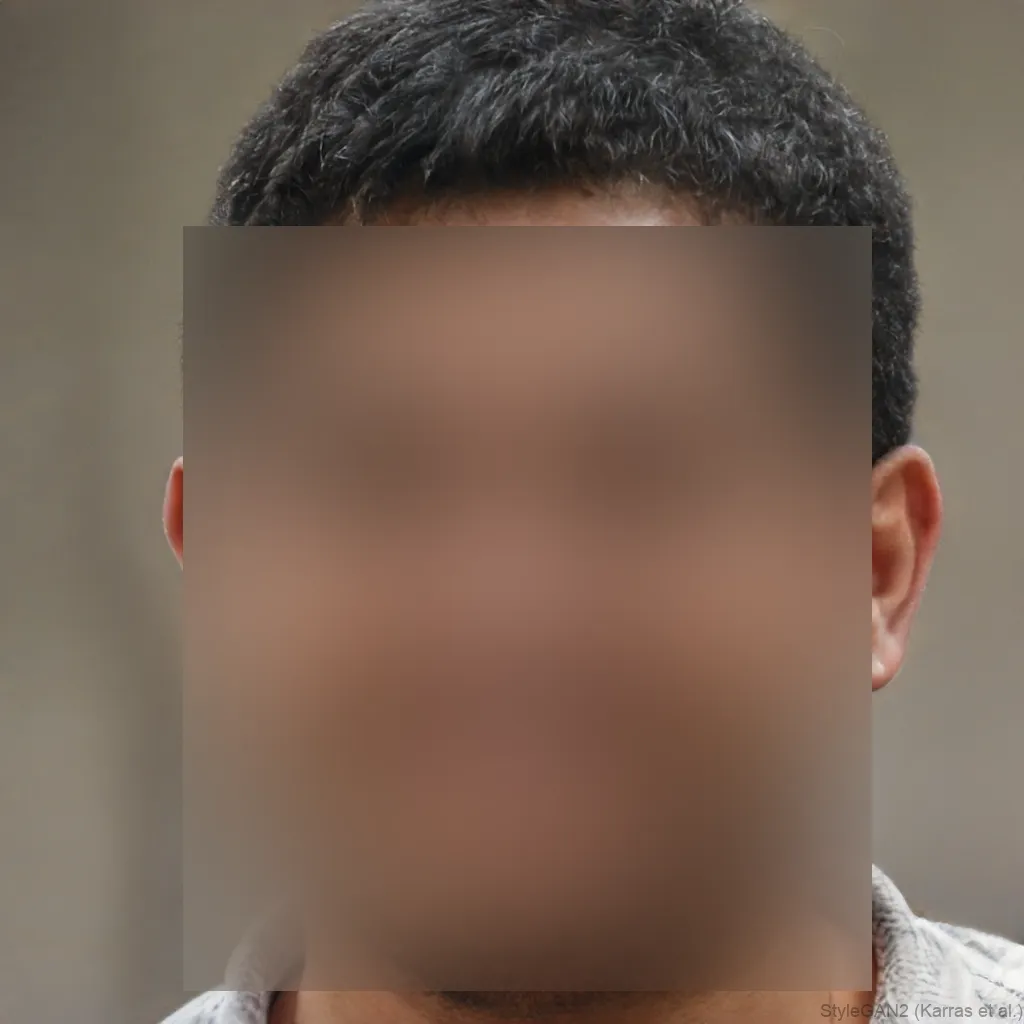

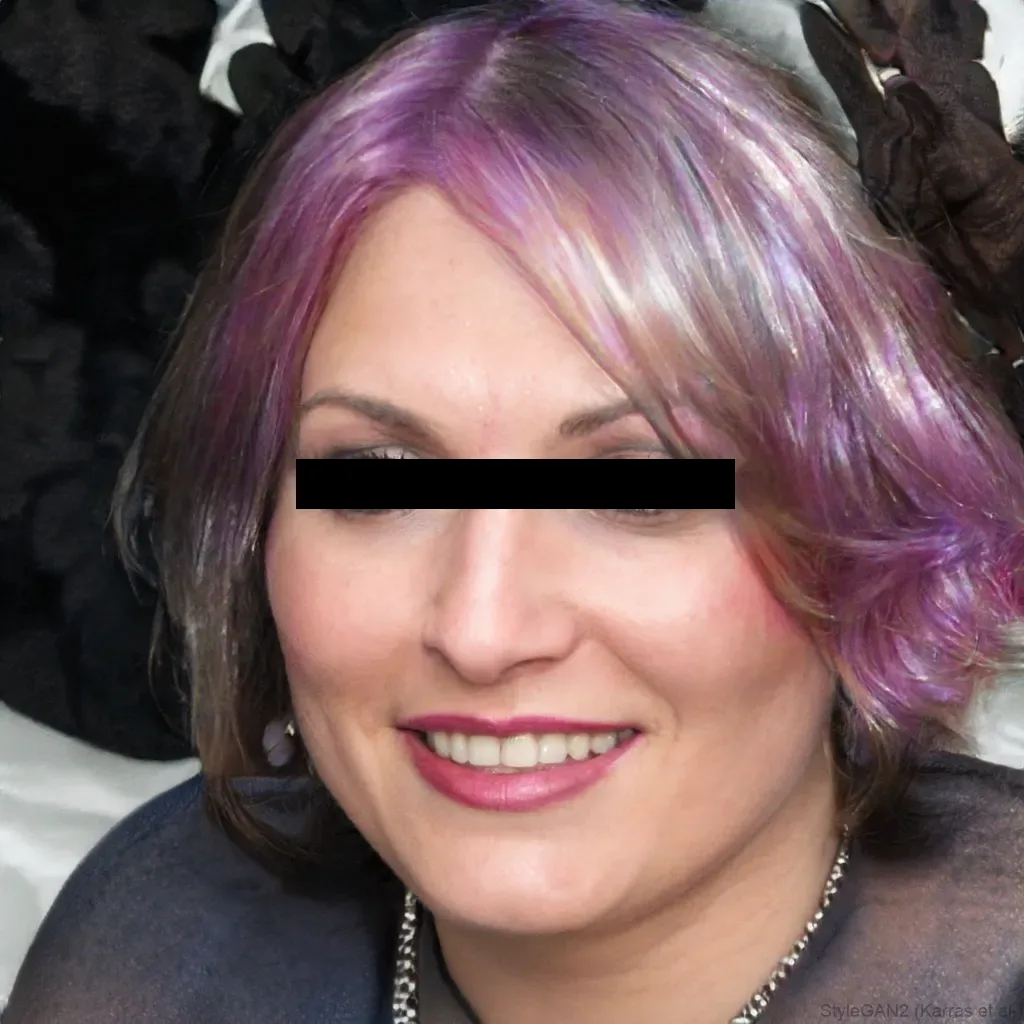
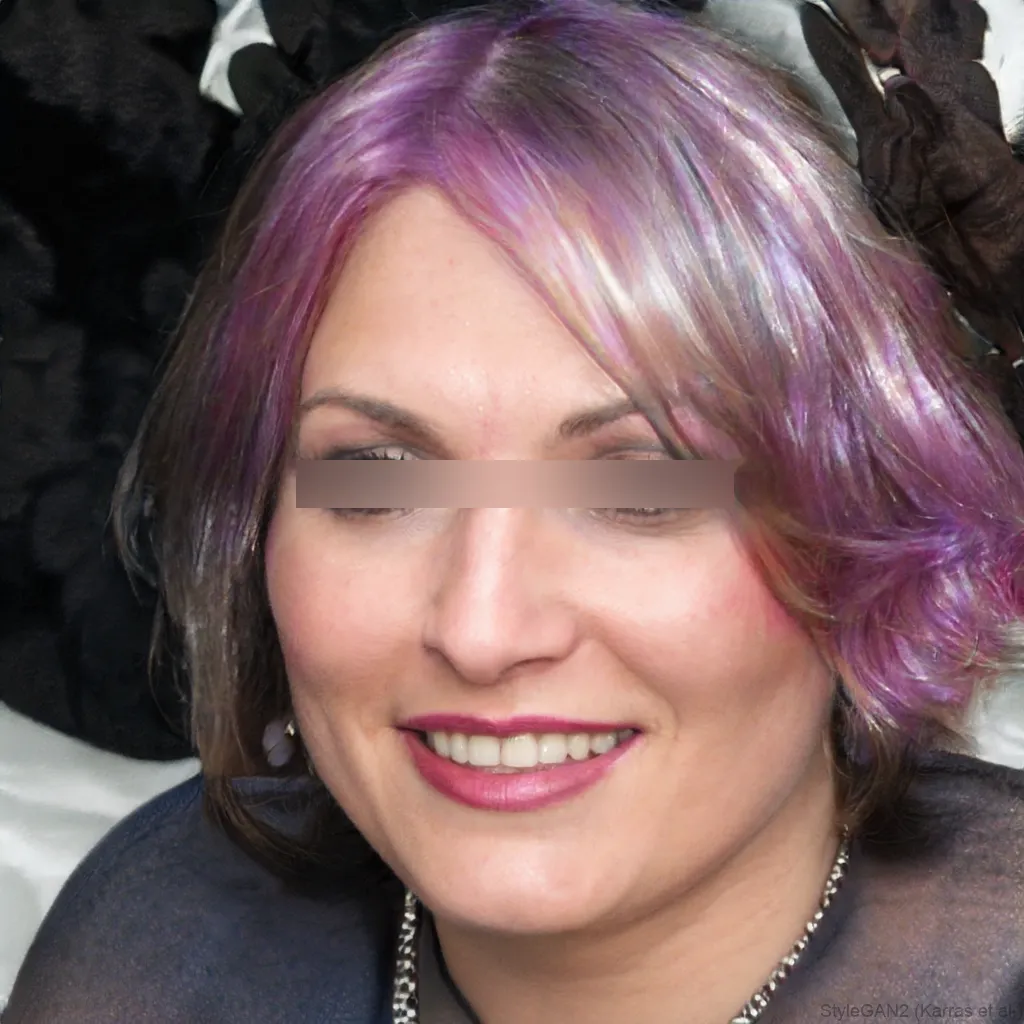
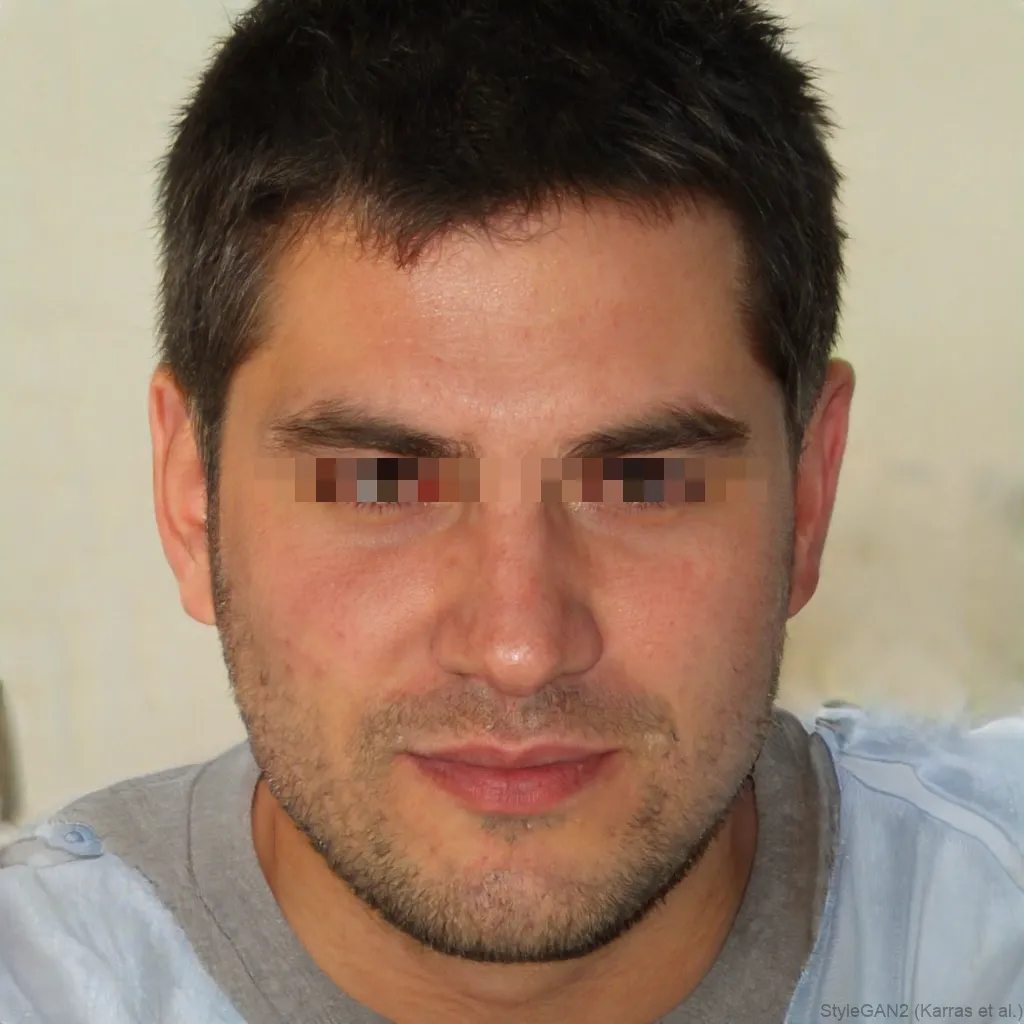
Prefer a pixelated look to a soft blur? blurfacephotos.com pixelates or mosaics a face in seconds. Choose the area, pick the Pixelate effect and adjust the block size, then download, all locally in your browser. Pixelation gives an obviously-censored, tamper-evident result that reads clearly in memes, screenshots and reports.
You don’t need Photoshop to pixelate a face. Where Photoshop wants you to select the region and apply a Mosaic filter by hand, here the face is detected automatically and pixelated in one click.
Blur vs pixelate, when to use a mosaic
A blur is soft and natural; pixelation is blocky and unmistakably deliberate. Reach for pixelation when you want it obvious that a face was censored on purpose, memes, reaction screenshots, incident reports, or anywhere a soft blur might look like an accident. You can switch between the two in a click and compare.
Pixelate a face without Photoshop
In Photoshop you’d select the face by hand and apply Filter → Pixelate → Mosaic, then tune the cell size. That works, but it needs the software and a bit of skill. Here the face is detected automatically and pixelated in one click, free, in the browser, and with nothing uploaded.
Choosing the block size
Bigger blocks hide more detail. Use the Strength slider to make the mosaic coarser or finer; for real anonymity, coarse enough that individual features disappear. If any features are still recognisable, increase the strength or switch to Whole face.
Pixelate a face in a video
The same Pixelate effect works in the Video tab: every detected face is pixelated across the clip and exported as an anonymised video, no frame-by-frame editing.
How to do it, step by step
- 1Add your photoDrop a JPG, PNG or WebP into the editor above. It stays on your device, nothing is uploaded.
- 2Choose Pixelate and the areaSelect the Pixelate (or Mosaic) effect, pick eyes, mouth or the whole face, and set the strength.
- 3Download the pixelated photoExport the result as a PNG, ready to share.
Frequently asked questions
How do I pixelate a face online for free?
Open blurfacephotos.com, add a photo, choose the Pixelate effect and the face area, then download, no account and no Photoshop needed.
How do you pixelate a face on an iPhone?
Open the tool in Safari on iPhone, add a photo, choose Pixelate and save the result to Photos. No app required.
Can I pixelate a face in a video?
Yes, pick the Pixelate effect in the Video tab and every detected face is pixelated across the clip.
Blur or pixelate, which hides a face better?
Both make a face unrecognisable. Pixelation gives a blocky, obviously-censored look; blur is softer. Use whichever fits your image.
How do I pixelate a face in Photoshop?
In Photoshop you’d select the face, then use Filter → Pixelate → Mosaic and set the cell size. It works but needs the software, here it’s one click, free, in the browser.
What’s the difference between pixelate and mosaic?
They’re the same idea, a grid of solid blocks. This tool offers both a Pixelate and a Mosaic option; Mosaic uses slightly larger, softer blocks.
How do I pixelate a face on Android?
Open the tool in Chrome on Android, add a photo, choose Pixelate and save the result, no app needed.