How to hide faces in photos, free & online
Blur, pixelate or bar out any face in a picture and download, free, in your browser, with nothing uploaded to a server.

 OriginalAnonymized
Drag to compare · original vs. anonymized
Drop photos here, or click to upload
JPG, PNG or WebP · free, no watermark
Nothing is uploaded
Face detection and blurring run entirely in your browser, so the file never leaves your device, ideal for privacy and GDPR.
Every face at once
Up to five faces are detected automatically, so you can hide a whole group in a single pass, not one at a time.
Blur, pixelate or bar
Pick the look that fits, a soft blur, a pixel mosaic or a solid black bar, over the eyes, mouth or whole face.
Styles
Different ways to hide a face
Blur, pixelate, black bar, emoji and more, switch the effect and the area (eyes, mouth or whole face) with one click.
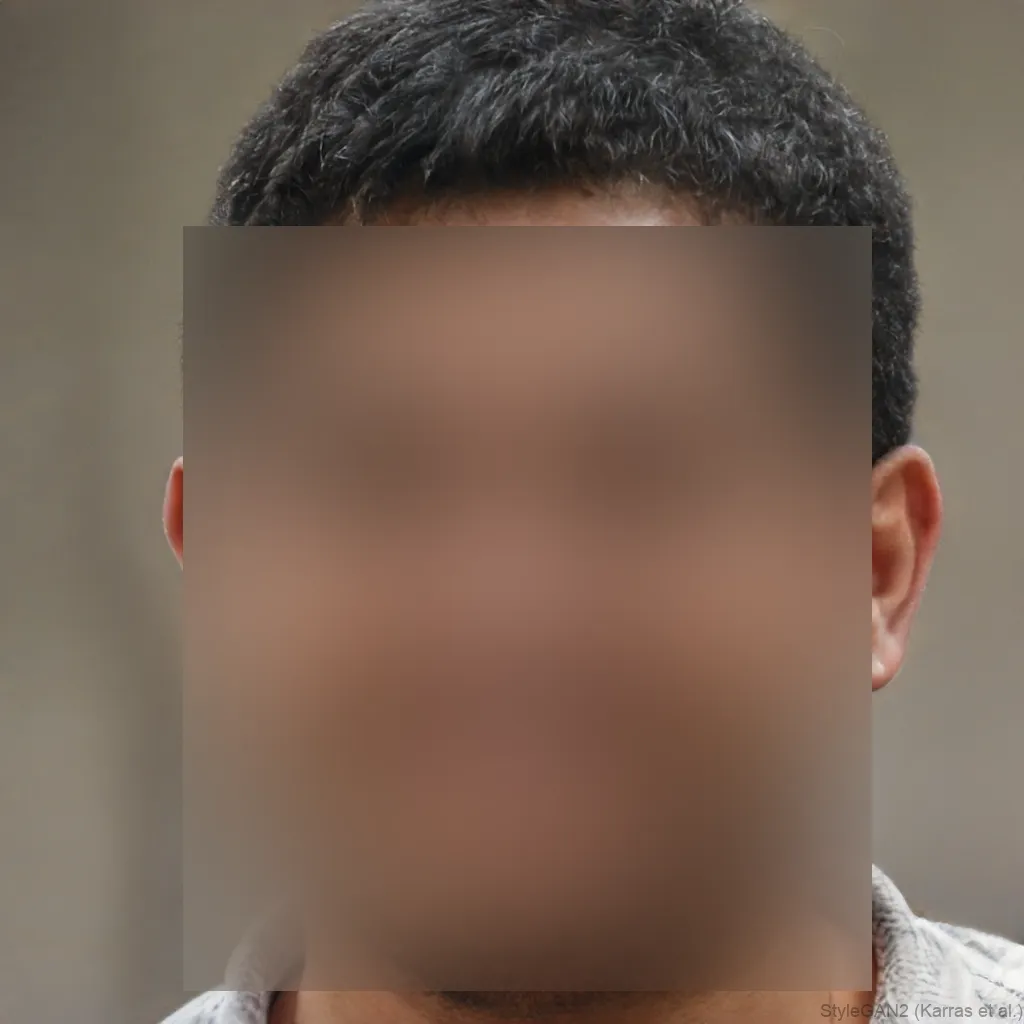

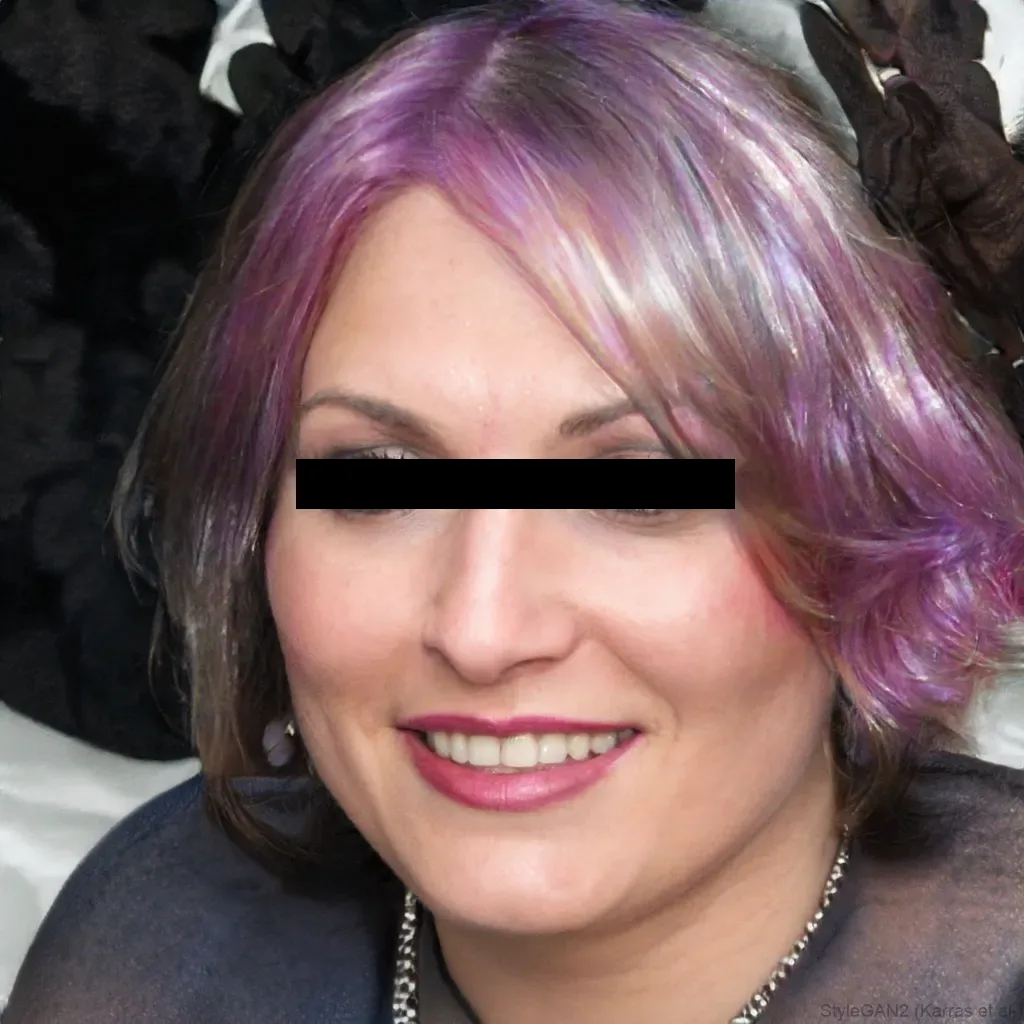
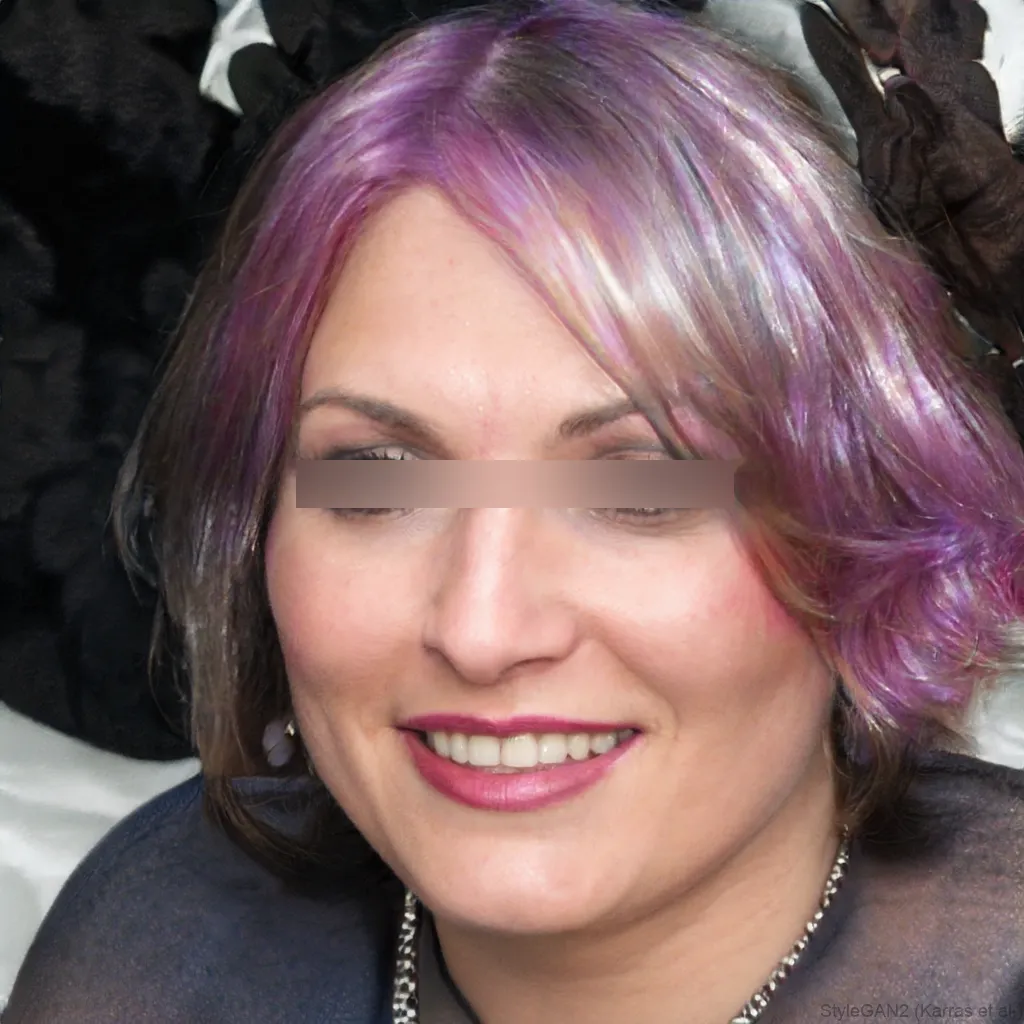
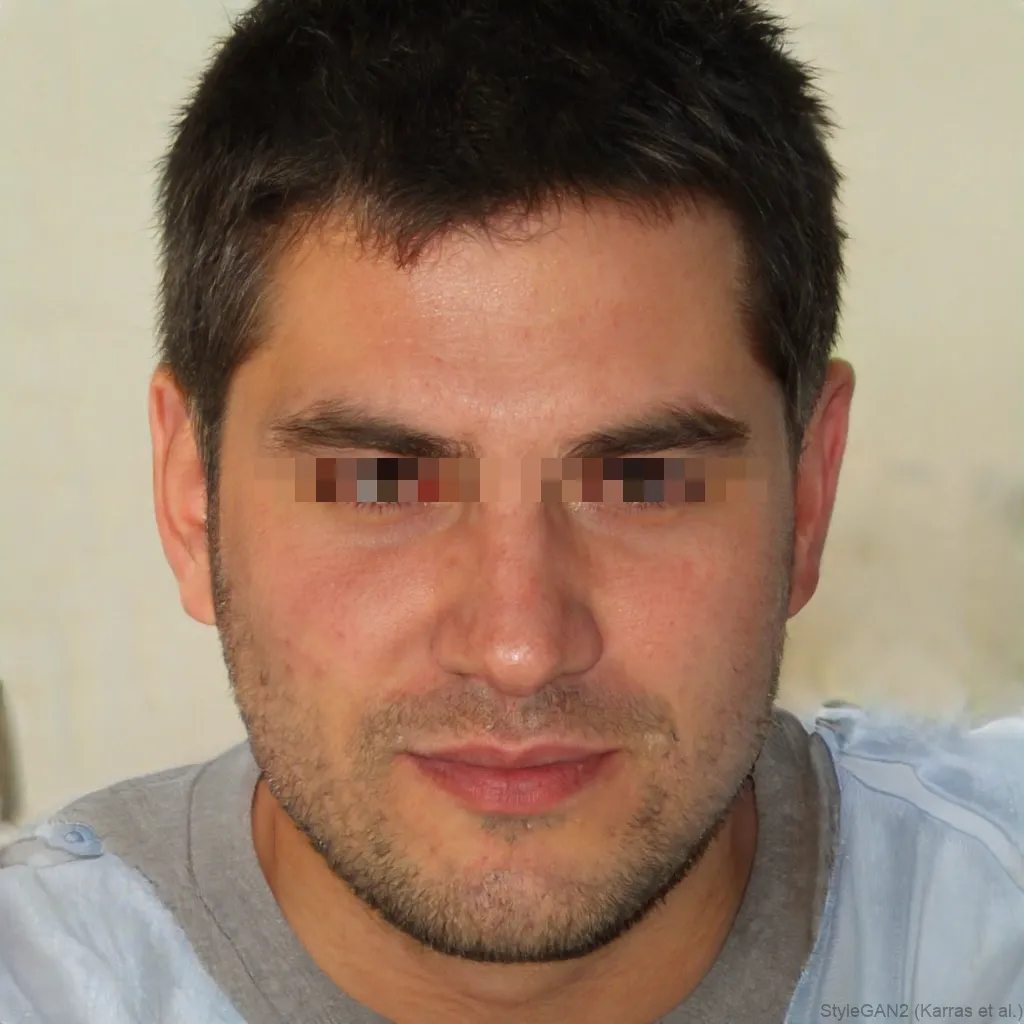
Need to hide a face, or several, in a photo before you share it? blurfacephotos.com hides faces in photos in seconds, right in your browser. Add a picture and it finds every face automatically, up to five at once, so you can blur, pixelate or drop a black bar over each one. Choose the eyes, the mouth or the whole face, adjust the strength, and download. There is no account and nothing is uploaded, so even sensitive pictures stay on your device.
Unlike upload-based “hide face” tools, your photo never leaves your device, and unlike Photoshop or Canva you need no account, subscription or design skills.
Why hide faces in a photo?
Hiding a face is the quickest way to share an image without exposing someone who didn’t agree to be seen. It comes up more often than most people expect:
- Posting a group photo, party or event picture to social media
- Protecting children and minors before sharing family photos
- Hiding bystanders caught in the background of a shot
- Redacting people in screenshots, receipts or scanned documents
- Removing faces from marketplace or rental listings
- Anonymising protest, activism or journalism images before publishing
Blur, pixelate or black bar, which hides a face best?
All three hide a face; they just read differently. A blur is the most natural and least distracting. Pixelation looks clearly, deliberately censored. A solid black bar is the boldest and most obvious, the classic redaction look. You can switch between them in one click and compare, so you pick whichever suits the photo and the message.
Hide every face in a group photo at once
You don’t have to hide faces one by one. When you add a photo, up to five faces are detected automatically and you can apply the same effect to all of them together. That makes a busy group shot, a classroom or a crowd just as quick to anonymise as a single portrait.
If a face is very small, turned away or partly hidden, it may be missed, so give the result a quick check before you share it and re-run with a stronger setting if needed.
Is it really free and private?
Yes. Hiding faces in photos is free and unlimited, with no watermark and no sign-up, and everything runs in your browser, so the image is never uploaded. That’s what makes it genuinely safe for sensitive pictures and different from most online “hide faces” tools. Premium adds video export, unlimited batch and full-HD; the photo tool itself stays free.
Does hiding a face actually protect someone’s identity?
Mostly yes, but the strength matters. A very light blur over a small face can sometimes be partially reversed by software, so for real anonymity use a strong blur, cover the whole face rather than just the eyes, or use pixelation. That’s exactly what the Whole face option and the Strength slider are for.
A simple rule of thumb: if you can still recognise the person yourself, hide the face harder.
Hide faces on your phone, no app needed
Because it all runs in the browser, you can hide faces on a phone with nothing to install, open it in Safari on iPhone or Chrome on Android, add a photo from your library, and save the anonymised version back to your camera roll. See the iPhone guide for the exact steps.
Typical online face hider vs blurfacephotos.com, side by side
| Typical online face hider | blurfacephotos.com | |
|---|---|---|
| Works without uploading your photo | ✕ | ✓ |
| Free, no sign-up | Sometimes | ✓ |
| Hides up to 5 faces automatically | Varies | ✓ |
| Blur, pixelate or black bar | Some | ✓ |
| No watermark on exports | ✕ | ✓ |
| Works on a phone with no app | Varies | ✓ |
How to do it, step by step
- 1Add your photoClick the editor above or drag in a JPG, PNG or WebP. It opens locally in your browser and is never sent anywhere.
- 2Pick how to hide each faceChoose eyes, mouth or the whole face, then blur, pixelate or a black bar, and adjust the strength until every face is unrecognisable.
- 3Download the anonymised photoExport the result as a PNG, free and with no watermark. The faces stay hidden and the original EXIF data is dropped.
Tips and common mistakes
- If you can still recognise the person, hide harder, raise the Strength or switch from a light blur to pixelate or the whole-face option.
- Cover the whole head, not just the eyes, hair, jawline and skin tone can still identify someone.
- Exports are re-drawn as a fresh PNG, so the original photo’s EXIF and location data are dropped automatically.
- Keep your original file separately, a strong blur or pixelation can’t be undone once you download.
- For a clip instead of a photo, use the Video tab, faces are tracked across every frame.
About blurfacephotos.com
blurfacephotos.com is a free, privacy-first face anonymizer. Every face is detected on your device and hidden with a blur, pixelation, a bar or an emoji, and the finished image is handed straight back to you. Nothing is uploaded, there’s no account for the free tool, and photos are unlimited with no watermark.
Beyond single photos you can hide faces in a whole video or anonymize a batch of images at once. See how it works or compare plans.
Frequently asked questions
How can I hide a face in a photo?
Open blurfacephotos.com, add your photo, choose the face area and an effect (blur, pixelate or a black bar), then download. It’s free, needs no account, and nothing is uploaded.
What app can I use to hide faces in photos?
You don’t need an app. blurfacephotos.com runs in any browser on phone or computer, detects faces automatically and hides them on your device, so there’s nothing to install and no sign-up.
How do I hide faces in photos for free?
Hiding faces in photos here is free and unlimited, with no watermark. Add a photo, pick blur, pixelate or a bar, and download. You only need Premium for video export or very large batches.
Can you hide faces on iPhone photos?
Yes. Open blurfacephotos.com in Safari, add a photo from your library, hide the faces and save it back to Photos, no app required. See our iPhone guide for the steps.
How do I hide or censor several faces in one photo at once?
Up to five faces are detected and hidden together, so you can anonymise a whole group in one pass rather than editing each face separately.
Is it legal to hide faces in photos?
Hiding faces is a common, legitimate way to protect privacy before sharing an image, and it’s often expected under rules like GDPR. It’s the reverse of anything harmful. (This isn’t legal advice.)
Will my photo be uploaded anywhere?
No. Face detection and hiding run entirely in your browser, so the image never leaves your device and is never sent to a server.
What image formats can I use?
JPG, PNG, WebP and BMP work in the browser. HEIC (the default iPhone format) and TIFF aren’t supported by browsers, so convert those to JPG first.
More ways to hide a face
Blur a face in a photo
Hide any face in a picture in seconds, free and online.
Read guide →Pixelate a face
Prefer a mosaic look? Pixelate any face online.
Read guide →Censor a face
Add a classic black bar over the eyes or whole face.
Read guide →Blur faces in a video
Track and blur faces across every frame, then export.
Read guide →