How to put an emoji over a face (free)
Cover any face with an emoji sticker in seconds, free, private, right in your browser.
 OriginalAnonymized
Drag to compare · original vs. anonymized
Drop photos here, or click to upload
JPG, PNG or WebP · free, no watermark
Cover with any emoji
Drop an emoji over the face, a smiley, sunglasses, a robot or a lock, placed on the face automatically.
Nothing is uploaded
Face detection and blurring run entirely in your browser, so the file never leaves your device, ideal for privacy and GDPR.
Free & playful
A lighter way to hide a face than a blur or a bar, free and with no account.
Styles
Different ways to hide a face
Blur, pixelate, black bar, emoji and more, switch the effect and the area (eyes, mouth or whole face) with one click.
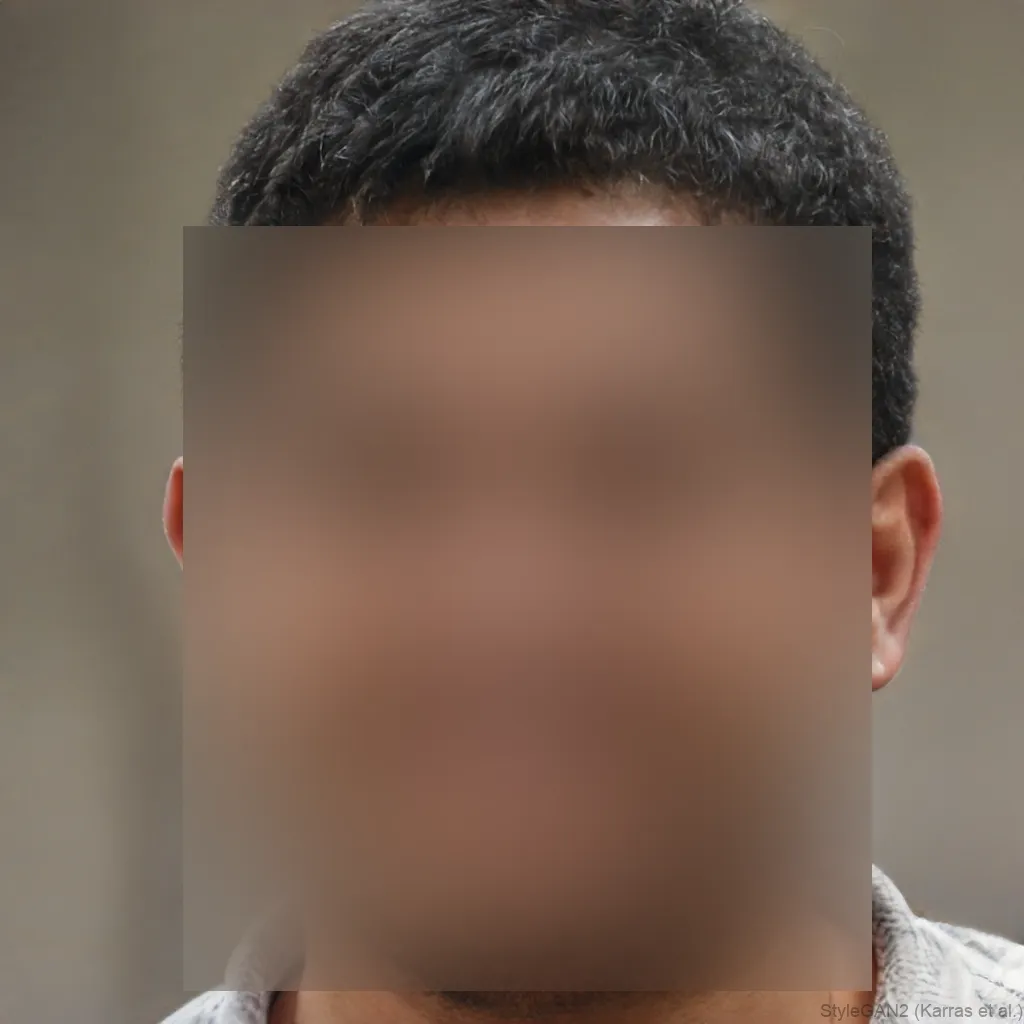

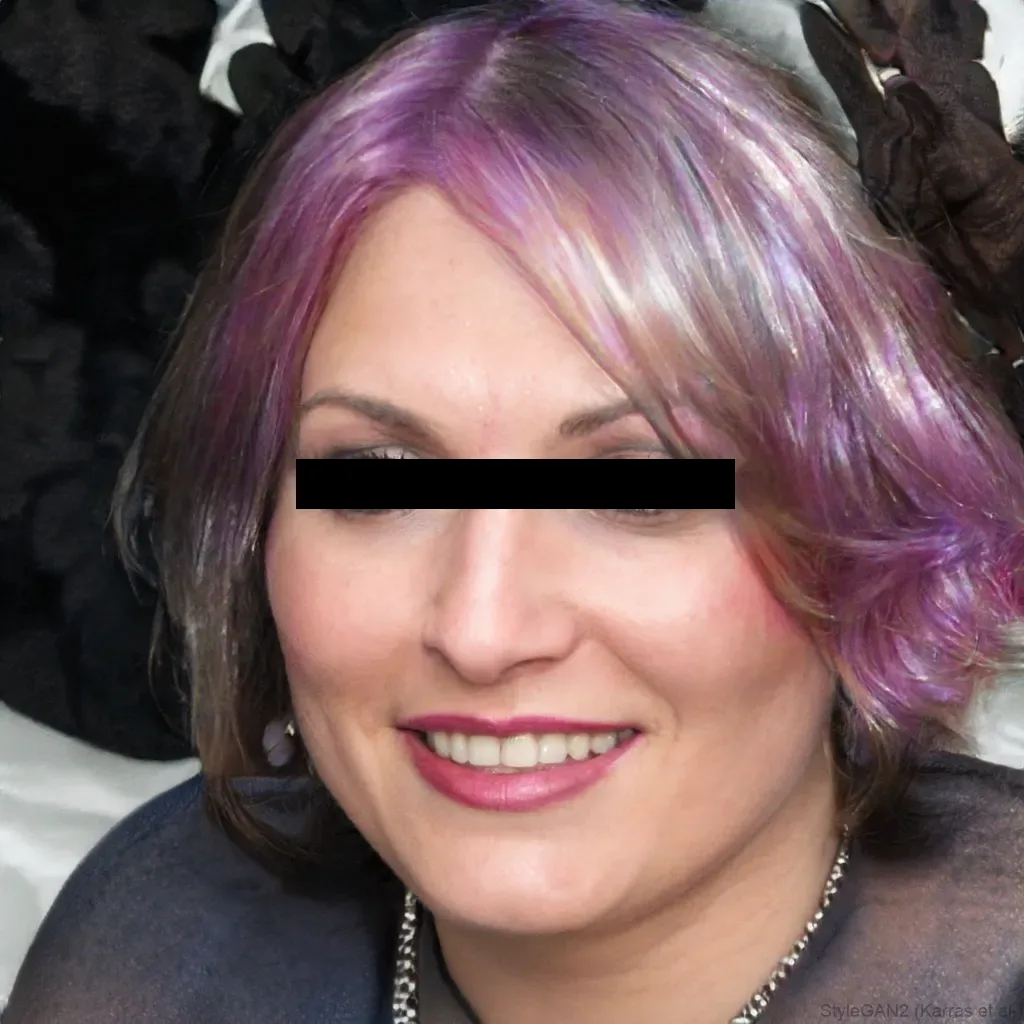
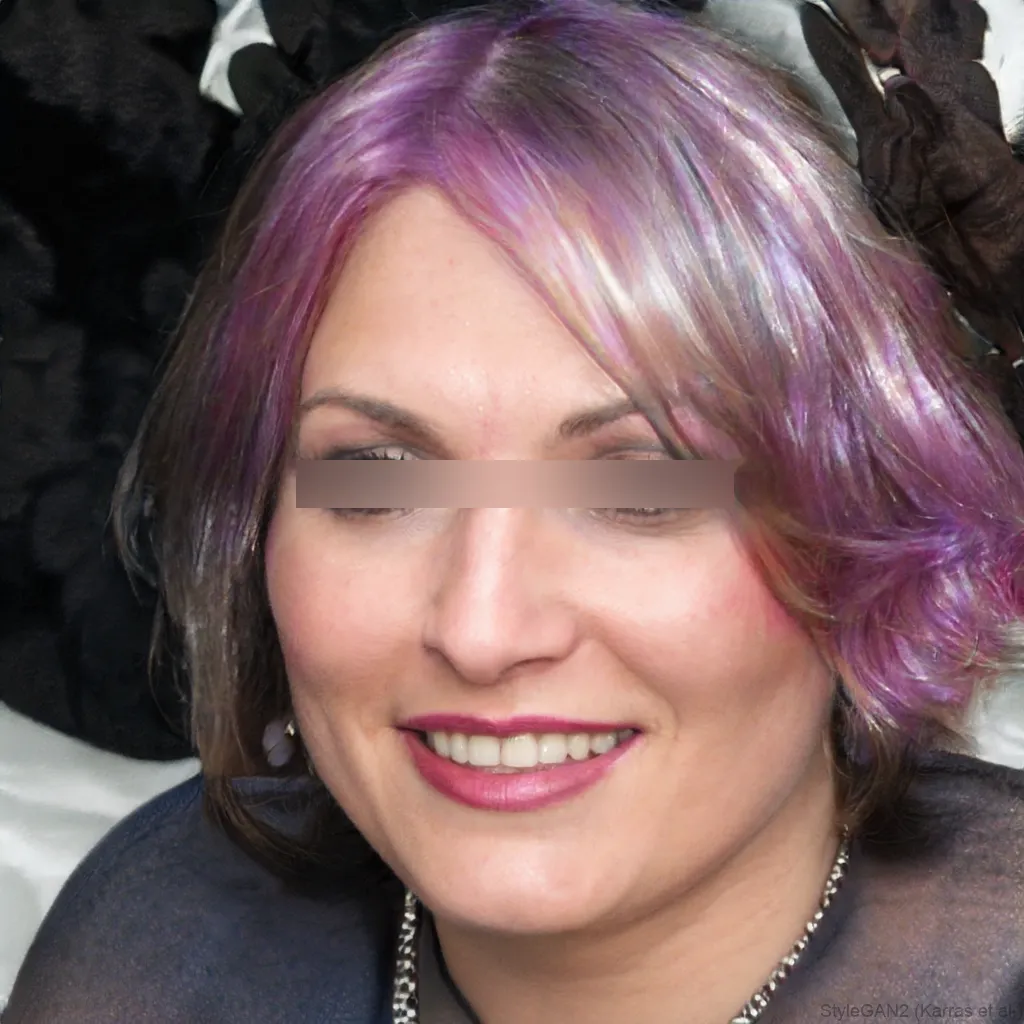
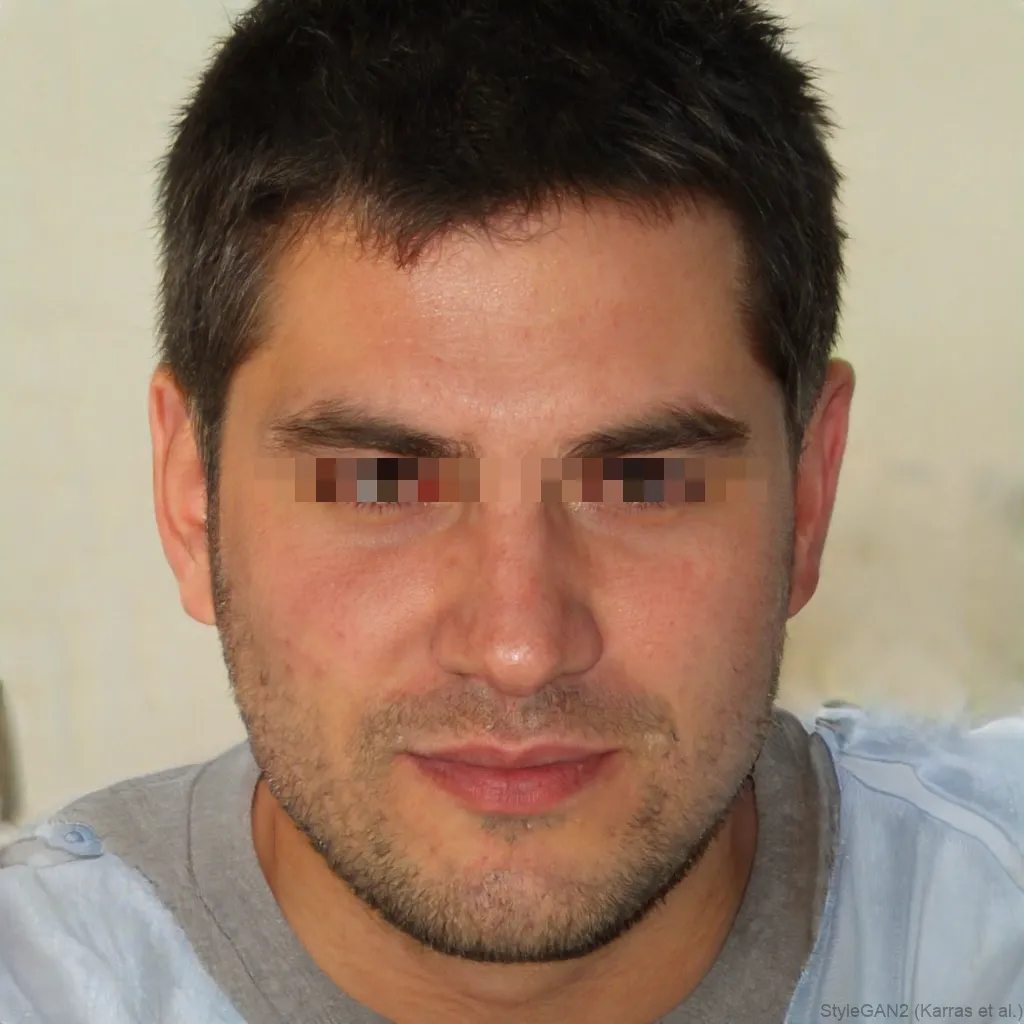
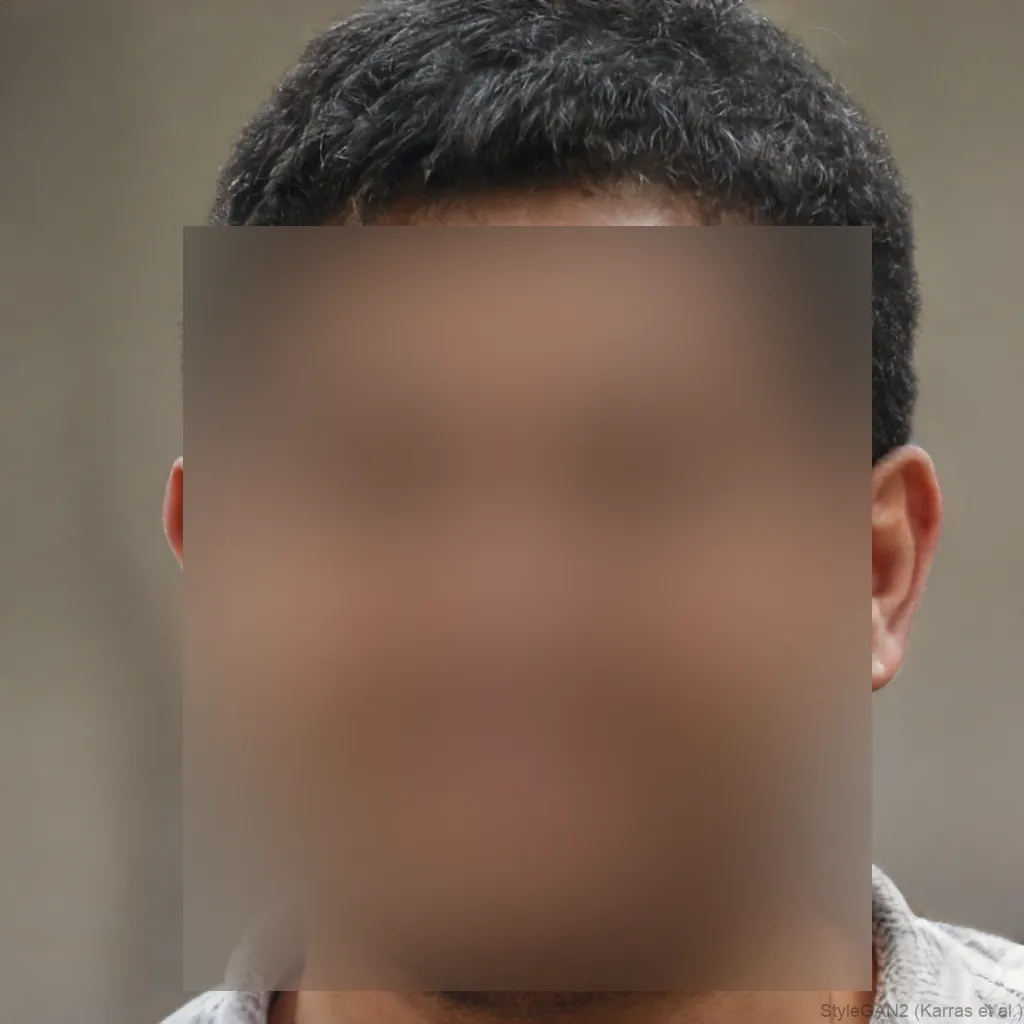
Putting an emoji over a face is the playful way to hide someone, popular for social posts, memes and reaction shots. blurfacephotos.com places an emoji sticker over the face for you, so you do not have to size and drag it into position. Pick the Sticker effect, choose an emoji, and it lands on the detected face, all in your browser with nothing uploaded.
Prefer something more serious? Switch the effect to a blur, pixelation or a black bar in one click.
Why cover a face with an emoji
An emoji hides a face while keeping the tone light, which is why it is so common on social media. It is friendlier than a hard black bar and less clinical than a blur, handy when you want to protect a friend, a child or a bystander in a photo without making the image look like evidence.
Choosing the emoji
You can pick from a set of emojis, a smiley, sunglasses, a cat, a robot, a lock and more, so the cover matches the mood of the post. The emoji is sized to the face automatically, and you can switch which one you use with a single click before you download.
Emoji, blur or black bar, which to use
An emoji is the most playful cover, a blur is the most natural, and a black bar is the boldest, most obviously-censored look. All three hide the face; pick by the tone you want. You can try each one on the same photo and compare in seconds.
Does an emoji fully hide a face?
As long as the emoji covers the whole face, yes. If you place it only over the eyes, the rest of the face can still give someone away, so size it to cover the head or switch the area to the whole face for proper anonymity.
Emoji over face for social posts and memes
A smiley over face or a laughing emoji keeps a photo funny instead of turning it into a redacted mugshot. For memes and group shots you are about to post, an emoji face cover keeps the joke readable while nobody's identity gets dragged into the caption or the comments.
Pick an emoji that matches the joke, a crying laughing face for a blooper, a sunglasses face for a too cool moment, a ghost for a Halloween post. Cover the whole face before you export, so the meme still reads at a glance even on a small phone screen.
Covering a child's or a friend's face playfully, without losing privacy
Parents sharing family photos often want something softer than a black bar over a kid's face. A cat, robot or star emoji reads as playful rather than censored, so a birthday party photo still looks like a birthday party photo instead of a case file.
The same idea works for friends in a group shot, a smiley or heart eyes emoji over a face keeps the mood light while the person stays unidentifiable to anyone scrolling past. Choosing the whole-face area covers hair, ears and chin too, not just the eyes and nose.
Matching the emoji to the tone: cool, friendly or anonymous
- Sunglasses emoji: cool and confident, good for candid shots, group photos and vacation pictures.
- Smiley or grinning emoji: friendly and neutral, the safest default for family photos and everyday posts.
- Lock emoji: reads clearly as private or redacted, useful when the point is to signal that a face is intentionally hidden.
- Robot emoji: anonymous with a light, playful edge, a common choice for gaming clips and tech related content.
- Skull, alien or ghost emoji: comedic, works well for exaggerated memes or holiday themed posts.
How to put an emoji over a face on iPhone and Android
blurfacephotos.com runs in the browser on both iPhone and Android, so putting an emoji over a face works the same way on either device, no app store download needed. On iPhone, open Safari, upload the photo, choose the Sticker effect and an emoji, and it is placed on the detected face automatically, just as it is on a laptop.
On Android, Chrome handles it just as well, pick your emoji and it lands on the face for you, then export straight to your camera roll. Because everything runs on-device, neither iPhone nor Android needs to upload the photo anywhere to finish the emoji face cover.
Doing it before you post to Instagram, TikTok or Snapchat
Instagram, TikTok and Snapchat all recompress photos and videos on upload, so it is better to cover a face with an emoji before posting rather than relying on stickers added inside the app during upload. Export the finished image or video first, then upload the already covered file.
That way the emoji is baked into the pixels and will not shift, shrink or get cropped out by an aspect ratio change. This matters most for Stories and Reels, where cropping to a 9:16 frame can move a face out from under a sticker that was placed inside the platform's own editor.
It's a flat image, not an animated sticker, so it stays put
An emoji placed with blurfacephotos.com becomes part of the image itself, a flat shape drawn over the face and then flattened into the final export. It is not a movable, animated sticker like the ones some apps add live on top of a photo, so it cannot be dragged off, resized by someone else, or peeled away later.
That permanence is exactly what you want for privacy, once exported, the emoji face cover is fused to the photo the same way a printed sticker is glued to paper. For video, the same logic applies frame by frame, so the emoji tracks the face and stays fixed in the exported file instead of floating separately from it.
How to do it, step by step
- 1Add your photoDrop your image into the editor above, it opens locally and is never uploaded.
- 2Choose Sticker and an emojiSelect the Sticker effect, pick the emoji you want, and it is placed on the face automatically.
- 3Download the resultExport the photo as a PNG, ready to post.
Tips and common mistakes
- Use the whole-face area so the emoji covers hair, ears and chin, not just the eyes and nose.
- At the very least cover the eyes and nose, the features people recognize fastest, though the whole face is safest.
- Pick a simple, solid emoji like a smiley or sunglasses face, small or busy emoji can look messy once the photo is resized for a feed or story.
- For video with a moving subject, let the tool track the face automatically instead of placing one emoji and hoping it stays lined up.
- Export at full resolution so the emoji edges stay crisp on Instagram, TikTok or Snapchat instead of turning soft or pixelated.
About blurfacephotos.com
blurfacephotos.com is a free, browser based tool for hiding faces in photos and video. It automatically detects faces and lets you cover each one with a blur, pixelation, a solid bar, or an emoji sticker, including smiley, sunglasses, cat, robot, lock and more.
It works on photos, video files and live camera capture, and it handles batch jobs, so you can cover faces across many photos at once instead of one at a time. Everything runs on-device, so photos and video are never uploaded to a server, which keeps the whole process private.
The tool is free and unlimited for photos. Premium covers video export, unlimited batch and full HD.
Frequently asked questions
How do I put an emoji over a face?
Open blurfacephotos.com, add a photo, choose the Sticker effect and pick an emoji, and it is placed over the detected face automatically. Then download the result.
Can I choose which emoji to use?
Yes, you can pick from a set of emojis including a smiley, sunglasses, a cat, a robot and a lock, and switch between them in one click.
Can I put an emoji over a face on iPhone?
Yes, it runs in Safari on iPhone and Chrome on Android, so you can add the emoji and save the photo without any app.
Does the emoji cover the whole face?
It is sized to the area you choose. For full anonymity, cover the whole face rather than just the eyes so nothing recognisable is left.
Emoji or blur, which is better?
An emoji is more playful, a blur is more natural and neutral. Both hide the face, so pick whichever fits the tone of your post.
Is it free?
Yes, covering a single photo with an emoji is free with no account, and nothing is uploaded from your device.
Can I put an emoji over a face in a video, not just a photo?
Yes. blurfacephotos.com works on video as well as photos, and the emoji is tracked across frames so it stays over the face as the person moves, rather than staying fixed in one spot on the screen.
Does covering a face with an emoji also remove photo metadata?
Covering a face hides the visual identity in the image, and the exported photo is re-encoded, so the original EXIF metadata like camera, location and timestamp is not carried into the new file either.
Will the emoji look right after Instagram, TikTok or Snapchat compress my upload?
Yes, since the emoji is drawn into the image itself before you export, it survives the platform's compression the same way the rest of the photo does. Exporting at full resolution beforehand keeps the edges cleanest after upload.