How to blur a face in a photo on iPhone (no app)
No app, no account. Blur a face right in Safari on your iPhone or iPad and save it straight to Photos.
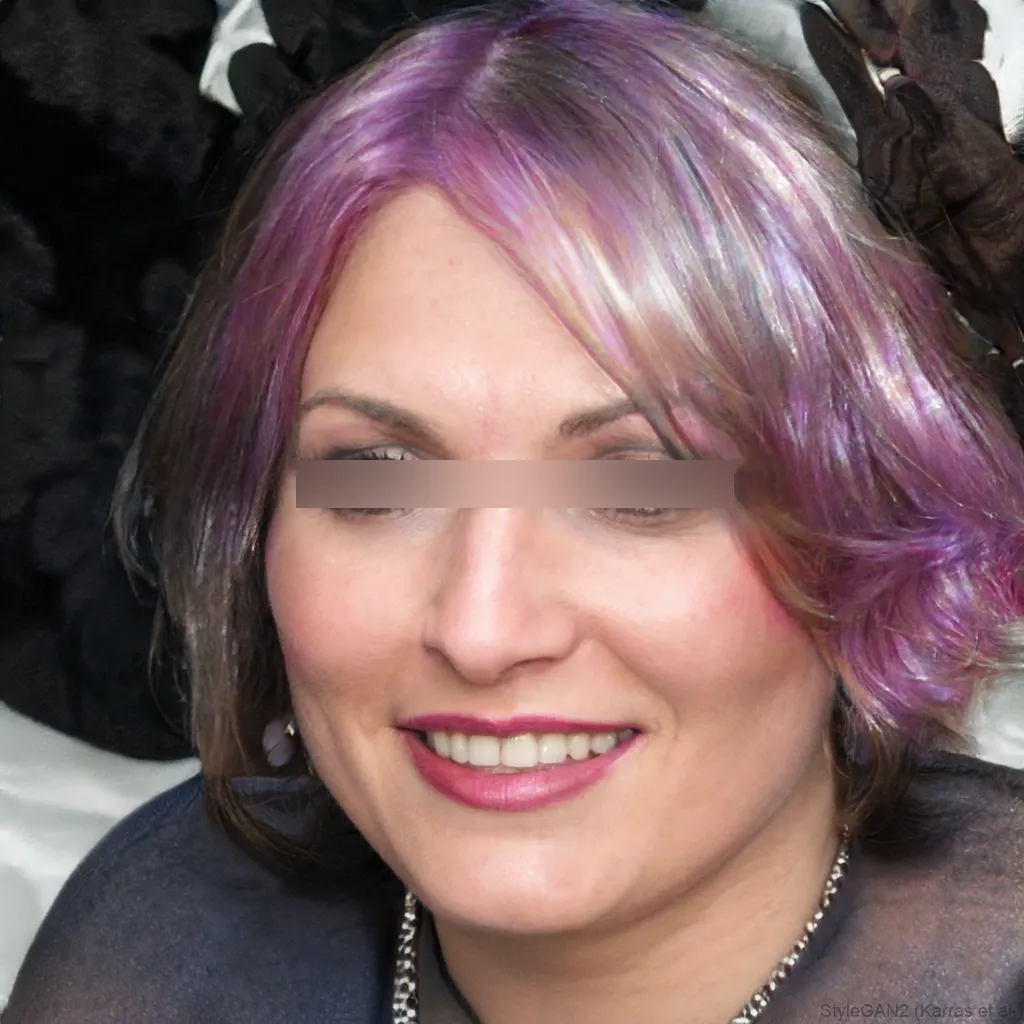
 OriginalAnonymized
Drag to compare · original vs. anonymized
Drop photos here, or click to upload
JPG, PNG or WebP · free, no watermark
No app to install
The whole tool runs in Safari on iPhone and iPad, nothing to download from the App Store.
Nothing is uploaded
Face detection and blurring run entirely in your browser, so the file never leaves your device, ideal for privacy and GDPR.
Free & instant
Blur a photo from your camera roll in seconds and save it back to Photos, with no account.
Styles
Different ways to hide a face
Blur, pixelate, black bar, emoji and more, switch the effect and the area (eyes, mouth or whole face) with one click.
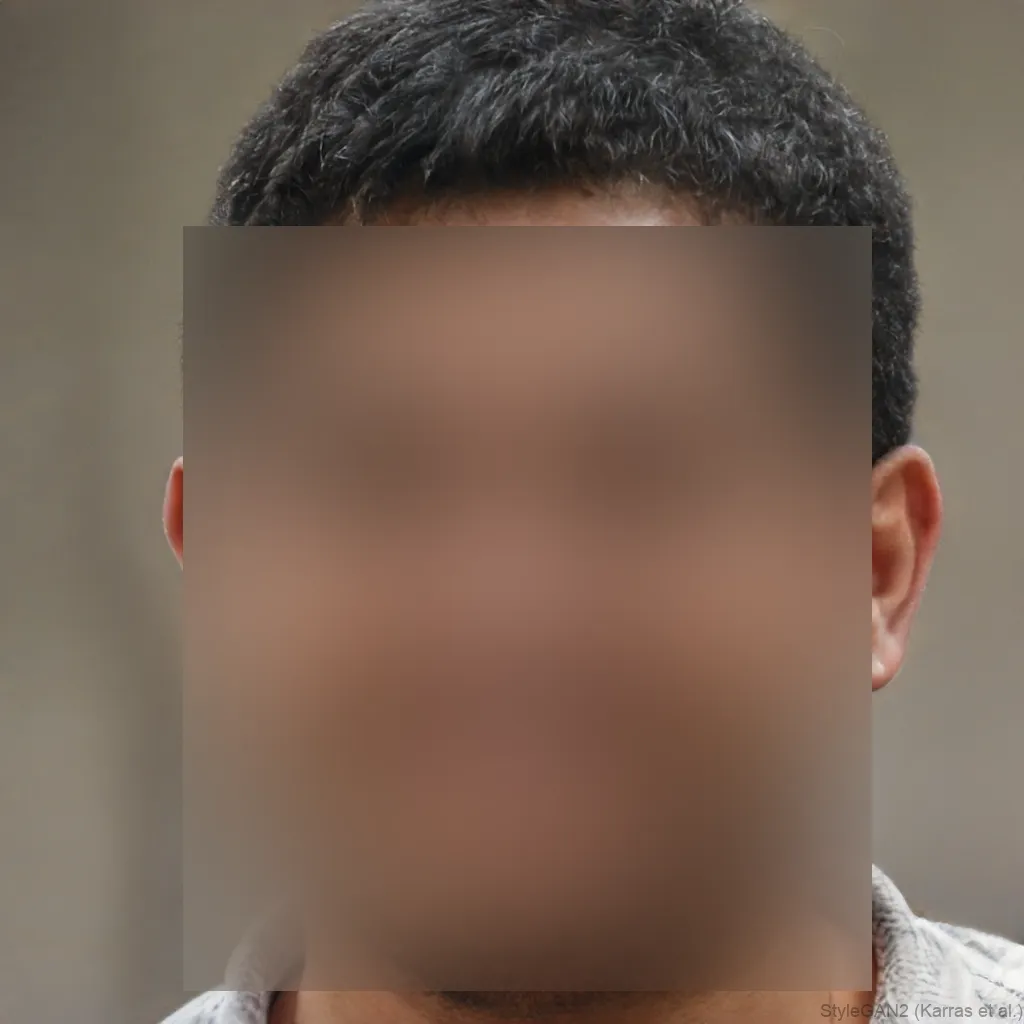

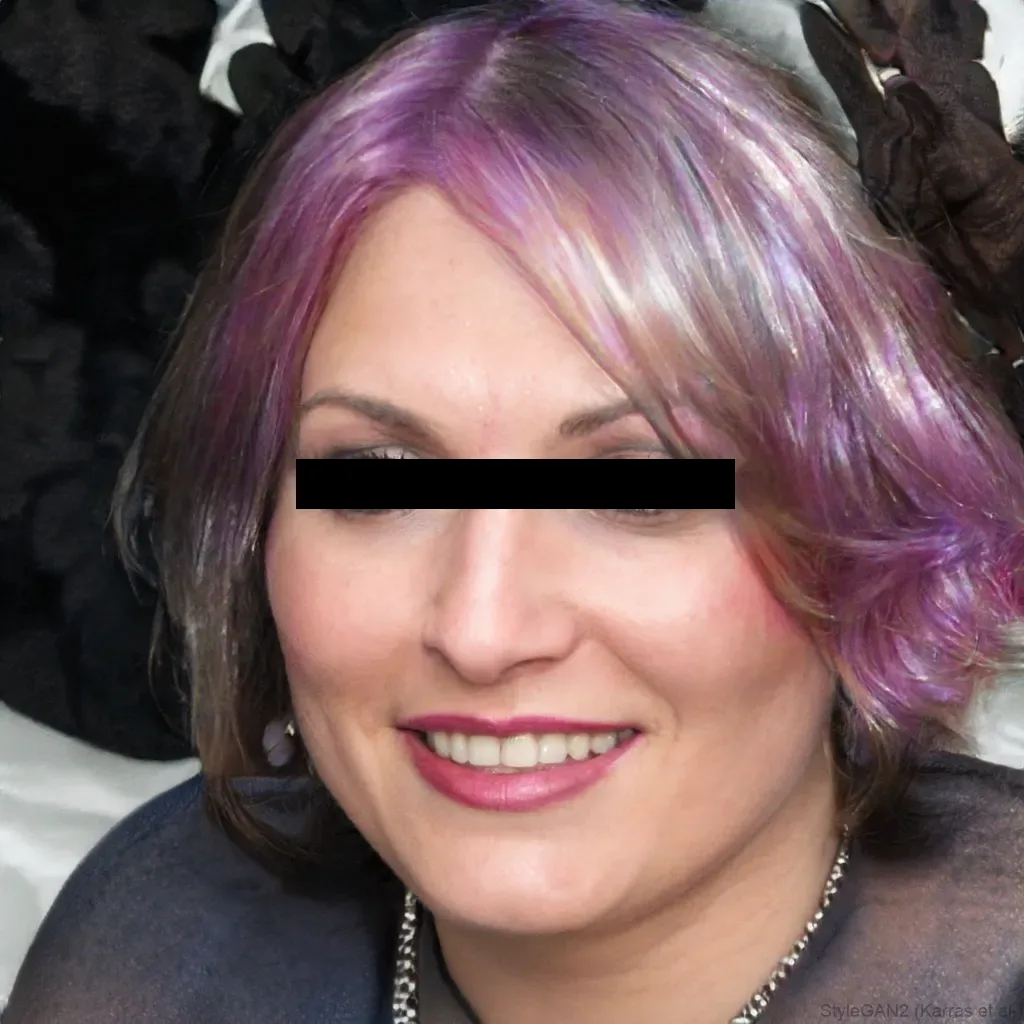
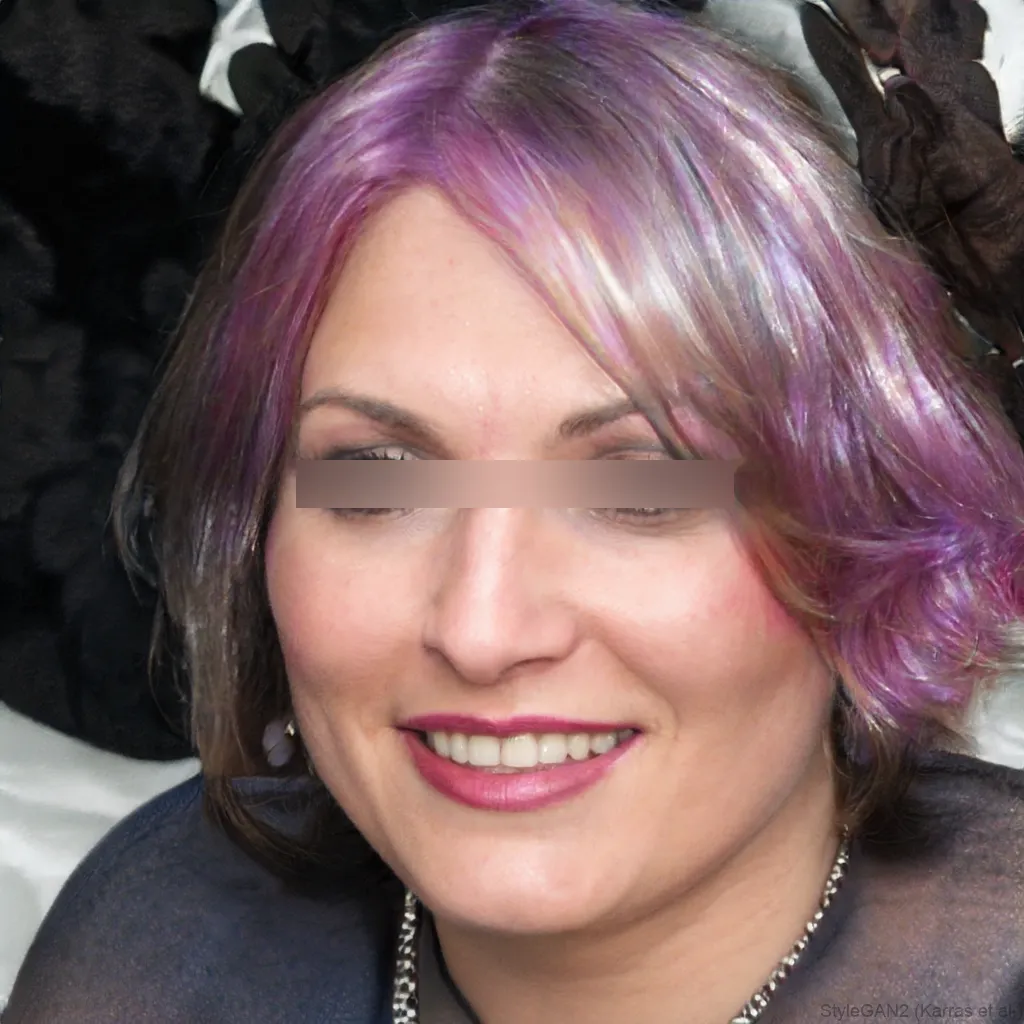
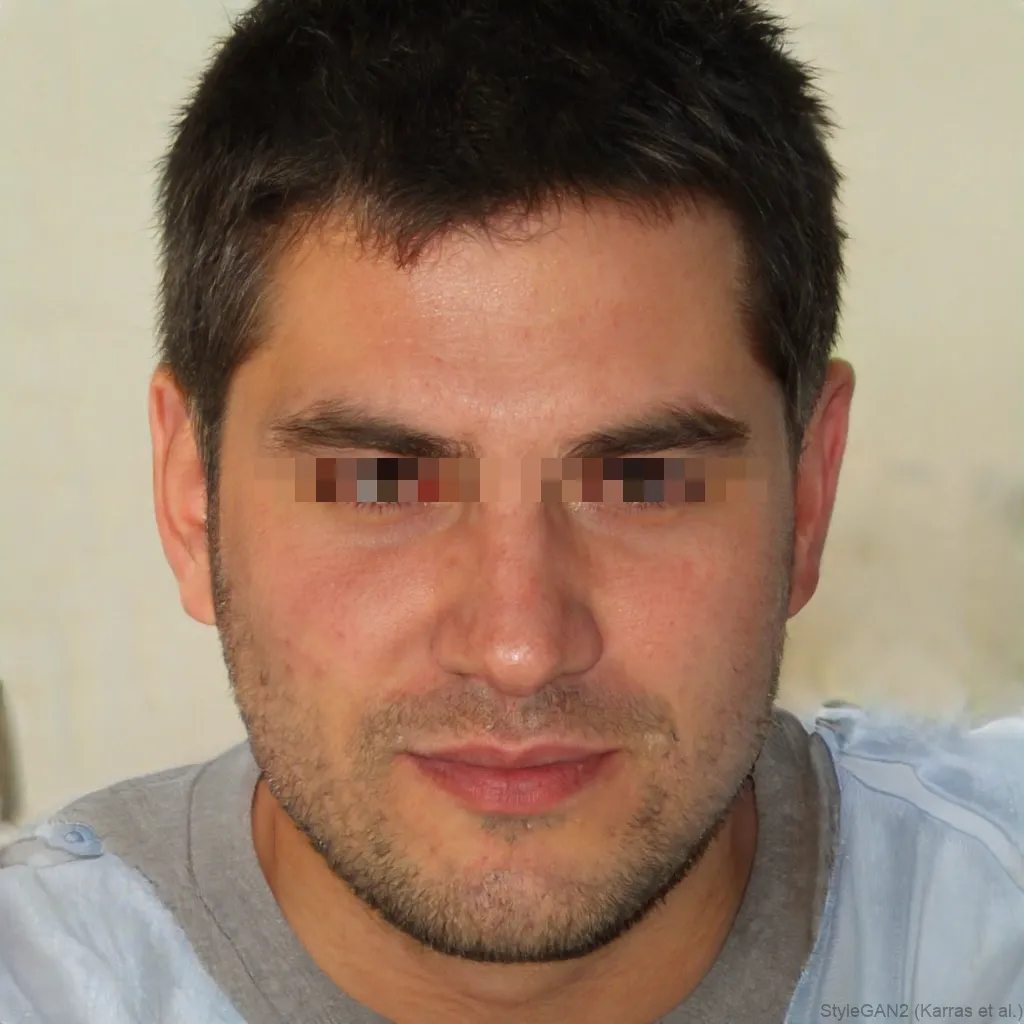
You don’t need an app to blur a face on iPhone. Open blurfacephotos.com in Safari (or any browser), add a photo from your library, blur the face and save the result back to Photos. Everything runs on your device, nothing is uploaded, so it works the same on an old iPhone as a new one, and on Android too.
Does the iPhone have a built-in blur feature? Sort of, but it’s a rough one, and it isn’t a real blur. Here’s how the options compare.
3 ways to blur a face on iPhone
There are three realistic options, from worst to best:
- The Markup pen in the Photos app, free and built in, but you scribble by hand, it smudges easily, and it isn’t a real blur.
- blurfacephotos.com in Safari, detects the face and applies a clean, adjustable blur, with no app and nothing uploaded (recommended).
- A third-party App Store app, works, but means installing software and often signing up or sitting through ads.
Using the built-in iPhone blur (and why it falls short)
Open a photo, tap Edit, then the Markup icon, choose the pen and scribble over the face. It’s handy in a pinch, but it’s an opaque scribble, not a blur: it’s easy to slip outside the lines and there’s no way to soften or adjust it. For anything you’re sharing publicly, an automatic face blur looks far cleaner.
Save the blurred photo to your camera roll
After you blur the face here, tap Download, then press and hold the image and choose Save Image (or use the share sheet). The anonymised photo lands straight in your Photos app, ready to send or post.
Works on Android and iPad too
Because it runs in the browser, the same steps work in Chrome on Android and in Safari on iPad, there’s no separate app to install for each device.
How to do it, step by step
- 1Open blurfacephotos.com in SafariNo download, no account. Tap the editor above to get started right on your phone.
- 2Add a photo from your libraryTap the upload area, pick a photo, then choose the face area and a blur or pixelate effect.
- 3Save it back to PhotosDownload the result and use Save Image to add the anonymised photo to your camera roll.
Frequently asked questions
Does the iPhone have a blur feature?
Only a rough one, the Markup pen in Photos lets you scribble over a face, but it isn’t a true blur. For a clean, automatic face blur, open blurfacephotos.com in Safari; it needs no app.
How do I blur a face on iPhone without an app?
Open blurfacephotos.com in Safari, add a photo from your library, blur the face and save it back to Photos. There’s nothing to install.
Can I blur a face in a video on iPhone?
Yes, the Video tab tracks and blurs faces across a clip in the browser on iPhone. See our video guide.
Can I blur a face in a screenshot on iPhone?
Yes. Take the screenshot, open blurfacephotos.com, add it from your library, blur the face and save the edited screenshot back to Photos.
Is it free to blur a face on iPhone?
Yes, blurring a single photo is free, and nothing is uploaded from your phone.
Can I blur a face after taking the photo?
Yes, it works on any photo already in your camera roll, not just new ones. Open it in the tool, blur the face and save the edited copy.
How do I blur a face before sending it in Messages?
Blur the photo here first, save the anonymised version to Photos, then attach that version in Messages instead of the original.
Does it work on iPhone 14, 15 and newer?
Yes. It runs in Safari, so it works on every recent iPhone and iPad regardless of model.