How to censor a face (black bar, blur or pixelate)
Drop a solid black bar over the eyes or whole face, the classic censor look, free and private.
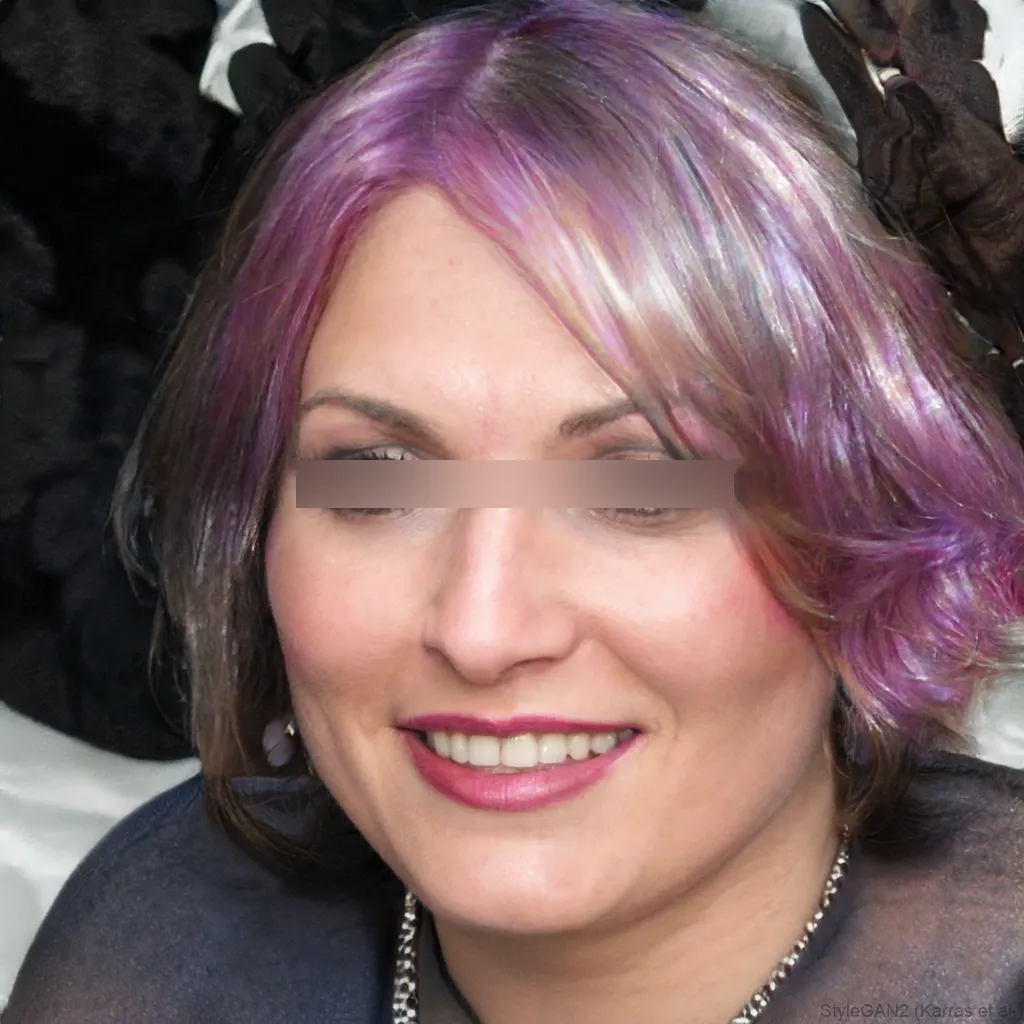
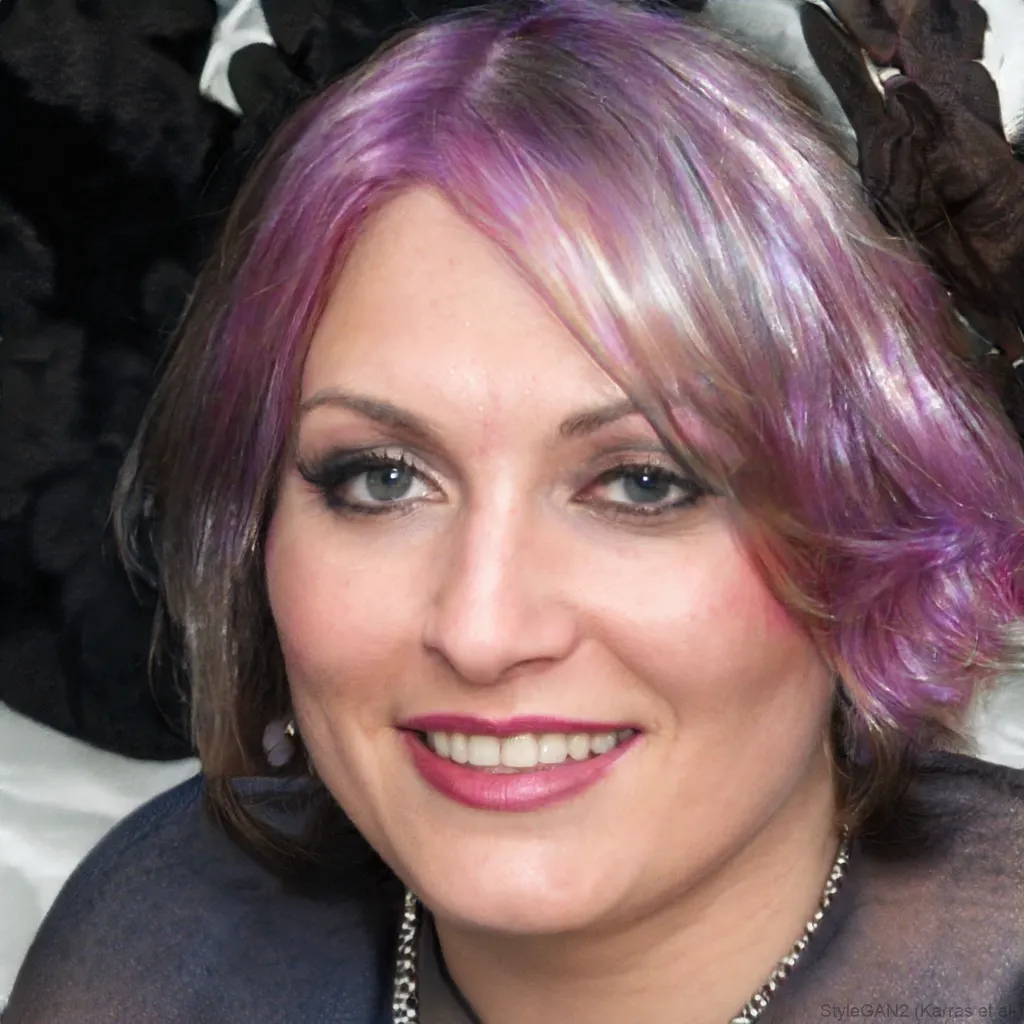 OriginalAnonymized
Drag to compare · original vs. anonymized
Drop photos here, or click to upload
JPG, PNG or WebP · free, no watermark
The classic censor bar
Cover the eyes with a solid black bar, or a white bar, blur, pixelate or emoji if you prefer.
Nothing is uploaded
Face detection and blurring run entirely in your browser, so the file never leaves your device, ideal for privacy and GDPR.
Free & instant
Censor a single photo for free, with no account and nothing uploaded.
Styles
Different ways to hide a face
Blur, pixelate, black bar, emoji and more, switch the effect and the area (eyes, mouth or whole face) with one click.
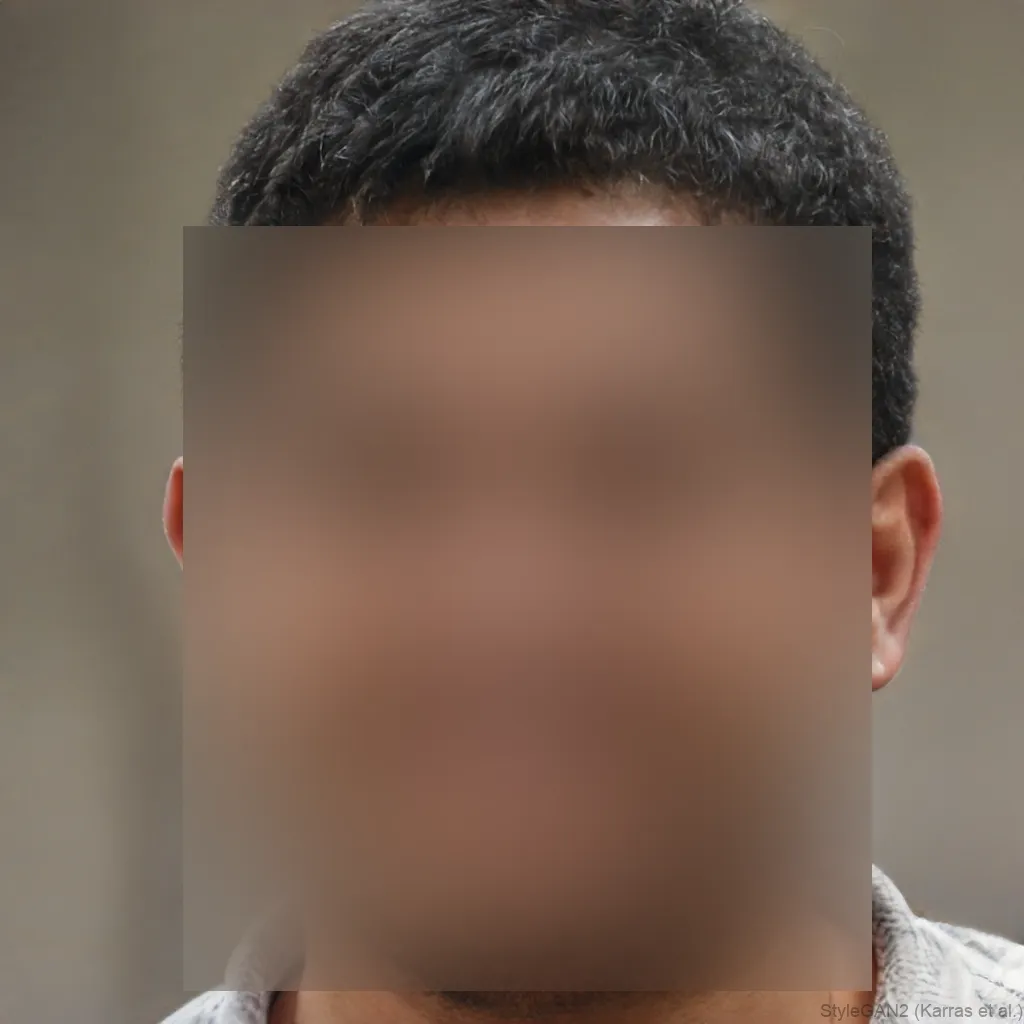
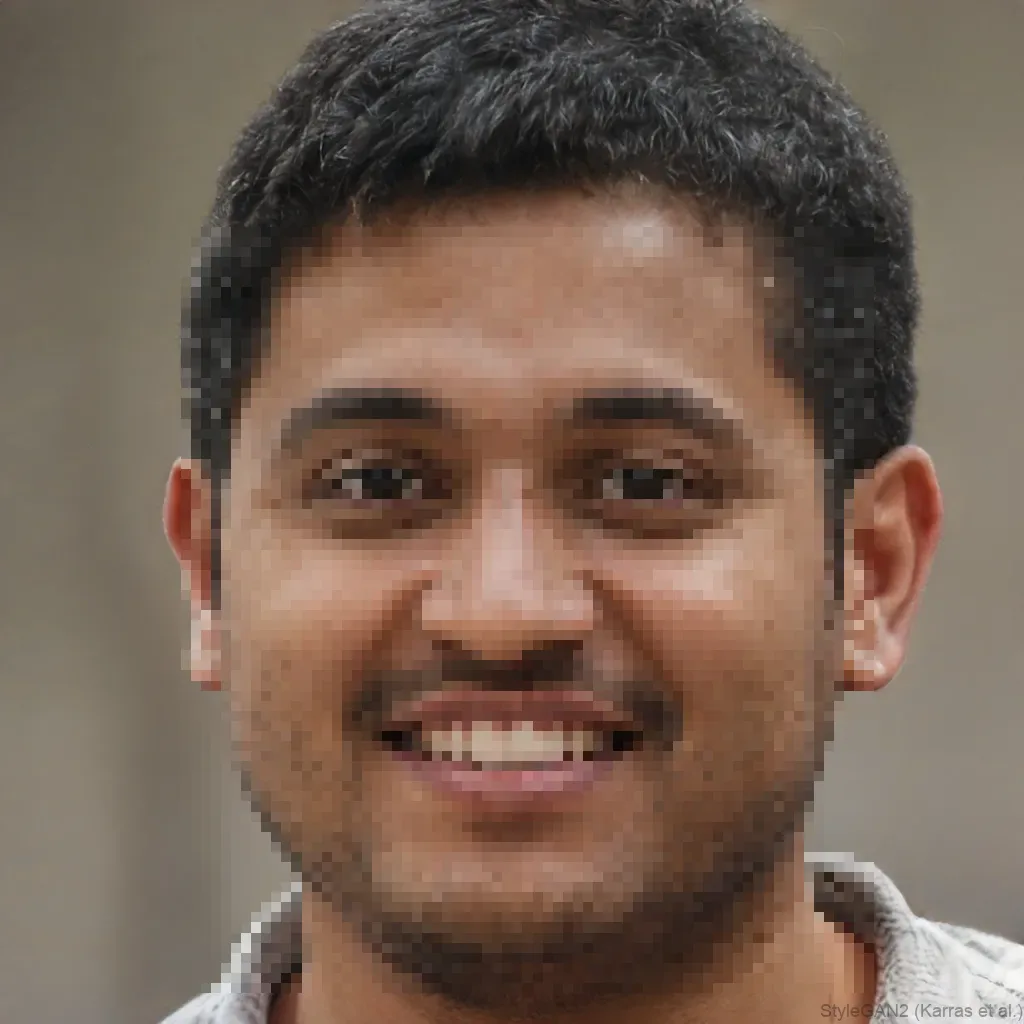
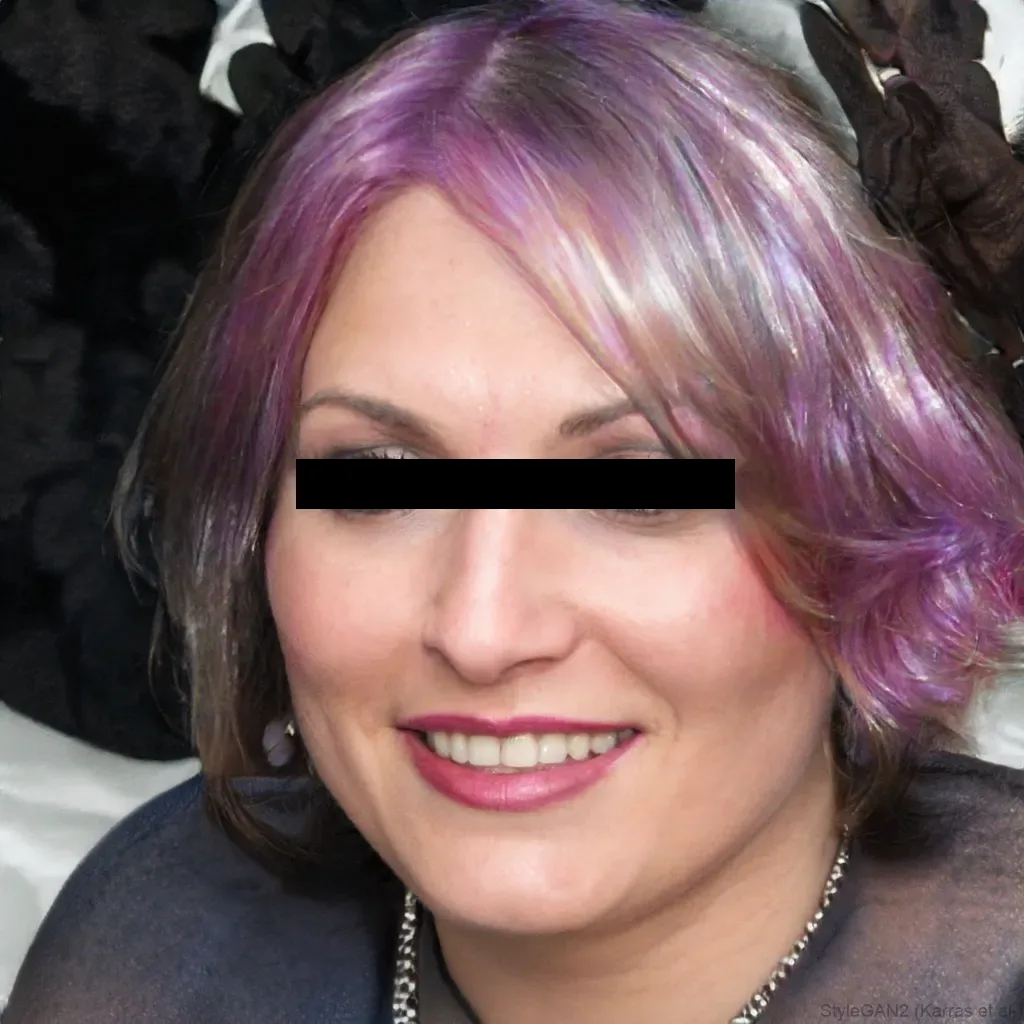
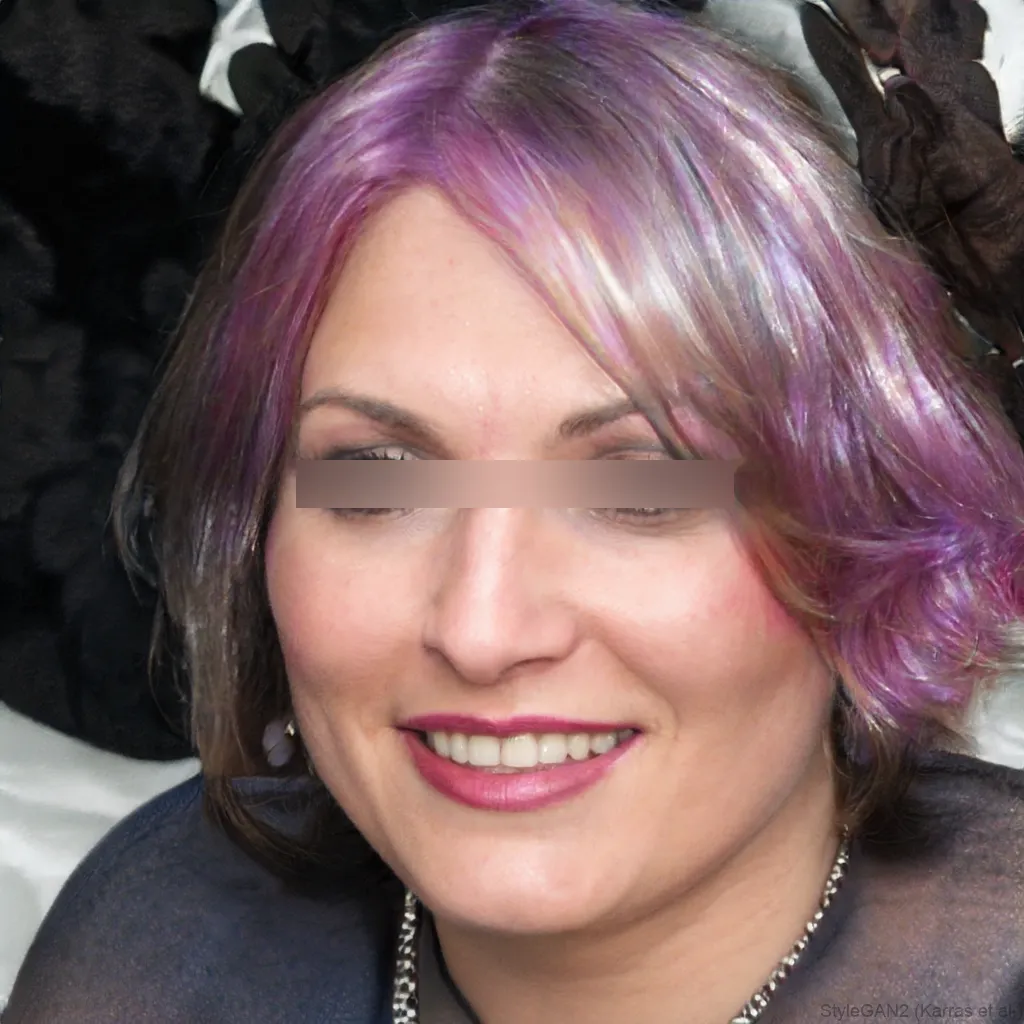
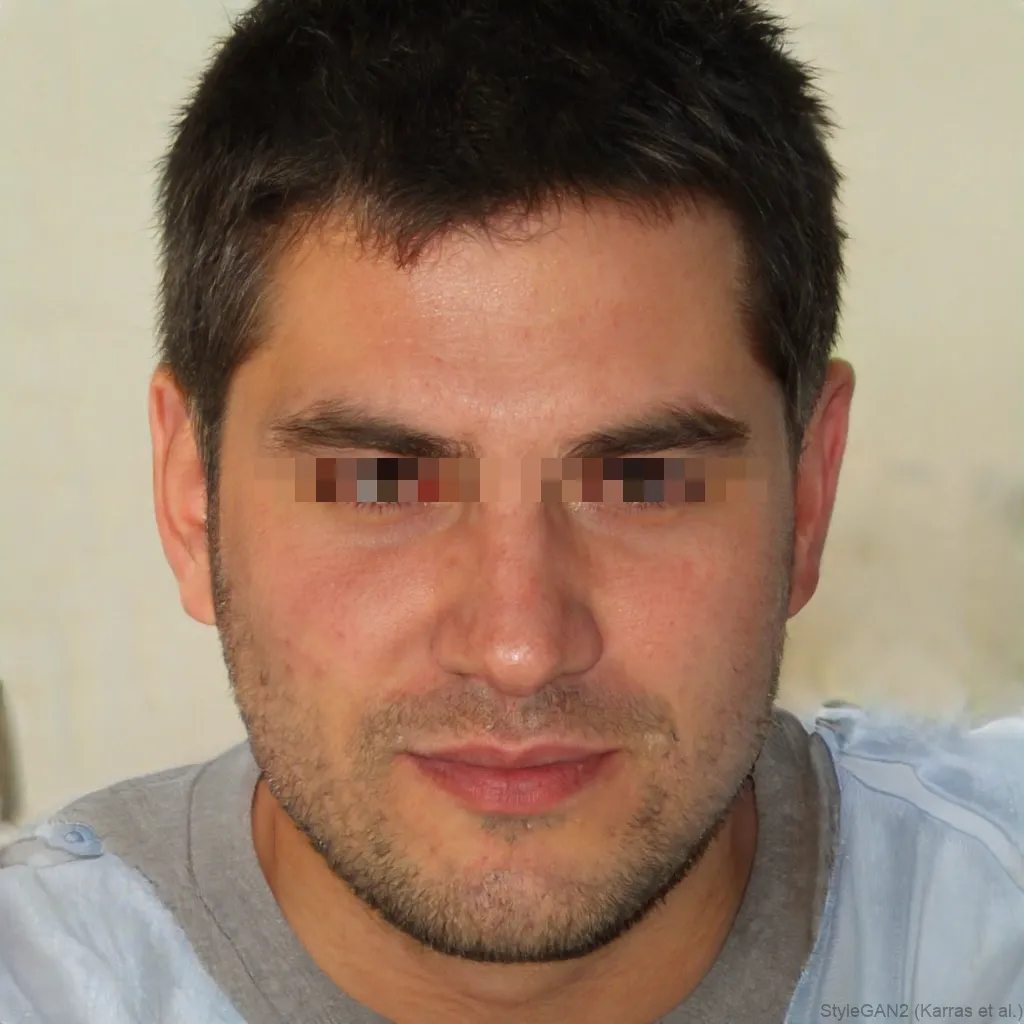
Add a classic censor bar over a face in seconds. blurfacephotos.com covers the eyes, mouth or whole face with a solid black or white bar, or a blur, pixelate or emoji if you prefer. Everything runs in your browser, so it’s a quick, private way to redact identities in screenshots, documents and social posts.
“Censoring” a face just means hiding it, and there’s more than one way to do it. Here are the options and when each makes sense.
Ways to censor a face
- Black bar, the classic, boldest censor, usually across the eyes.
- White bar, the same idea, lighter, for dark images.
- Blur, subtle and natural.
- Pixelate, a blocky mosaic that reads as clearly censored.
- Emoji sticker, cover the face with an emoji for a playful look.
The classic black bar over the eyes
The eyes-only black bar is the iconic “censored” look. Pick the Black bar effect and the Eyes area, and a solid bar is placed across the eyes automatically. Want to hide the whole identity instead? Switch the area to Whole face and the bar (or blur) covers everything.
Is it legal to censor a face?
Generally, censoring a face to protect someone’s privacy before you publish an image is fine, it’s the direction data-protection rules like GDPR push you towards. The legal risk is usually the opposite: publishing recognisable people without consent. Blurring or barring a face lowers that risk. (This is general information, not legal advice.)
Censor a face online or on your phone
It all runs in the browser, so you can censor a face on a laptop, or in Safari on an iPhone and Chrome on Android, no app, no upload. Download the result and save or share it.
How to do it, step by step
- 1Add your photoDrop your image into the editor above, it opens locally and is never uploaded.
- 2Choose Black bar and the areaSelect the Black bar effect and pick the eyes (the classic censor look), the mouth, or the whole face.
- 3Download the censored photoExport the result as a PNG.
Frequently asked questions
Is it legal to blur or censor someone’s face?
Generally yes, censoring a face to protect privacy before you share an image is fine and is what rules like GDPR encourage. (This isn’t legal advice.)
How do I censor a face for free?
Open blurfacephotos.com, add a photo, choose the Black bar (or blur/pixelate) effect and the eyes area, then download. It’s free and needs no account.
Can I censor a face on iPhone?
Yes, open the tool in Safari on iPhone, add a photo, apply the censor bar and save to Photos. No app needed.
Black bar, blur or pixelate, which should I use?
A black bar is the boldest, most obvious censor; blur is subtle; pixelation sits in between. You can switch effects with one click and compare.
How do I add a black bar over the eyes only?
Choose the Black bar effect and set the area to Eyes only, a solid bar is placed across the eyes automatically, the classic censored look.
Can I censor a face with an emoji instead?
Yes, pick the Sticker effect and choose an emoji to cover the face for a lighter, playful censor.
How do I censor a face in Photoshop?
In Photoshop you’d draw a black rectangle over the eyes or apply a Mosaic filter to the face. Here it’s automatic, pick Black bar and Eyes, and download.