How to redact a face in an image (free & private)
Black out, blur or pixelate faces to redact people from screenshots, documents and reports, in your browser, with nothing uploaded.
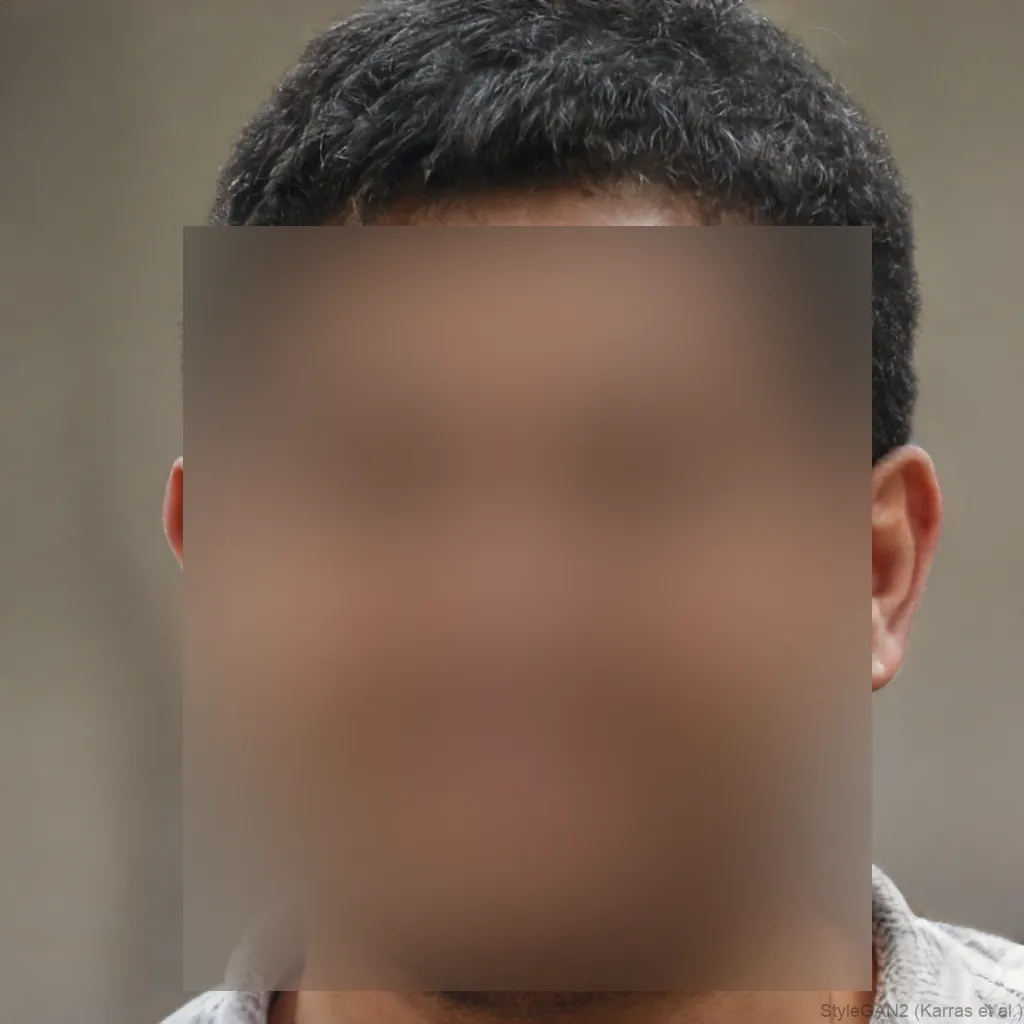
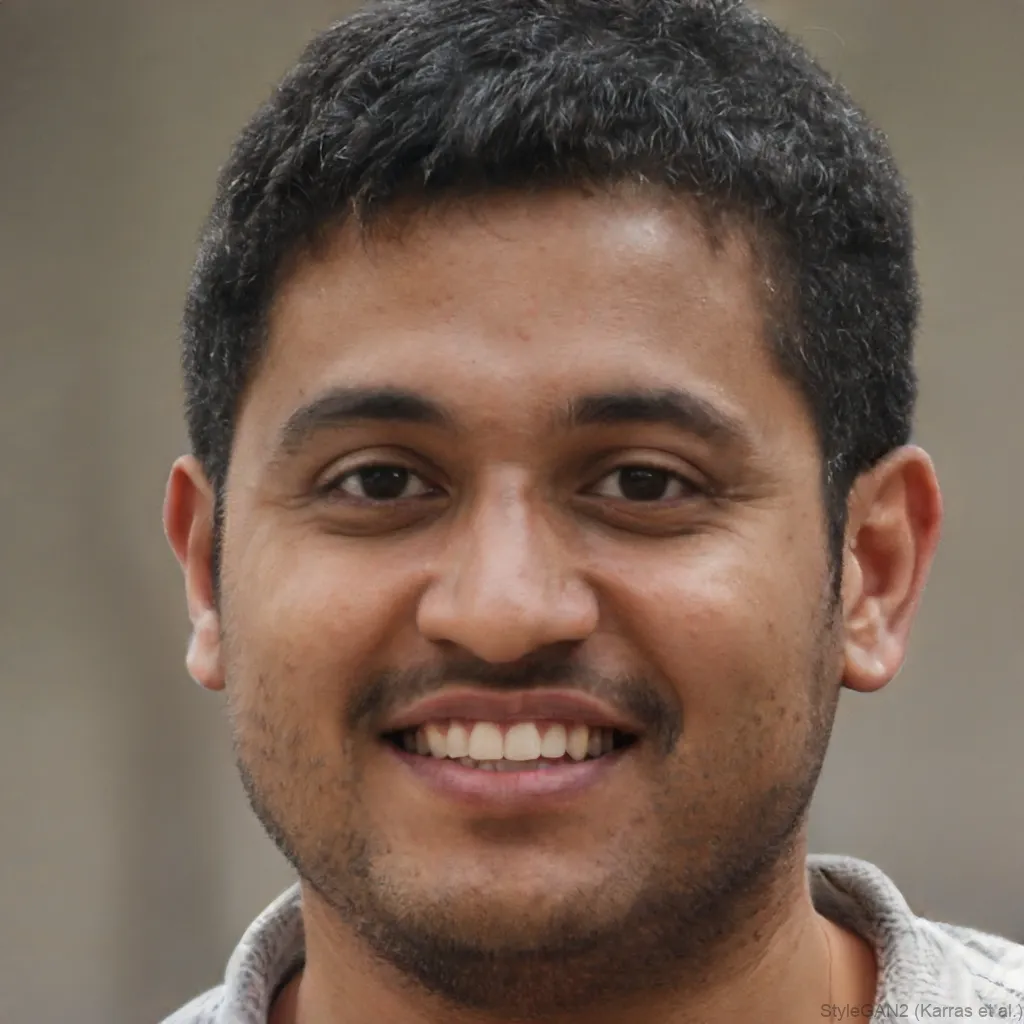 OriginalAnonymized
Drag to compare · original vs. anonymized
Drop photos here, or click to upload
JPG, PNG or WebP · free, no watermark
True blackout redaction
Cover a face with a solid bar or block, or blur or pixelate it, so the person can’t be identified in the file you share.
Nothing is uploaded
Face detection and blurring run entirely in your browser, so the file never leaves your device, ideal for privacy and GDPR.
Safe for sensitive files
Because the image never leaves your device, it’s a private way to redact personal data before a document is disclosed or published.
Styles
Different ways to hide a face
Blur, pixelate, black bar, emoji and more, switch the effect and the area (eyes, mouth or whole face) with one click.
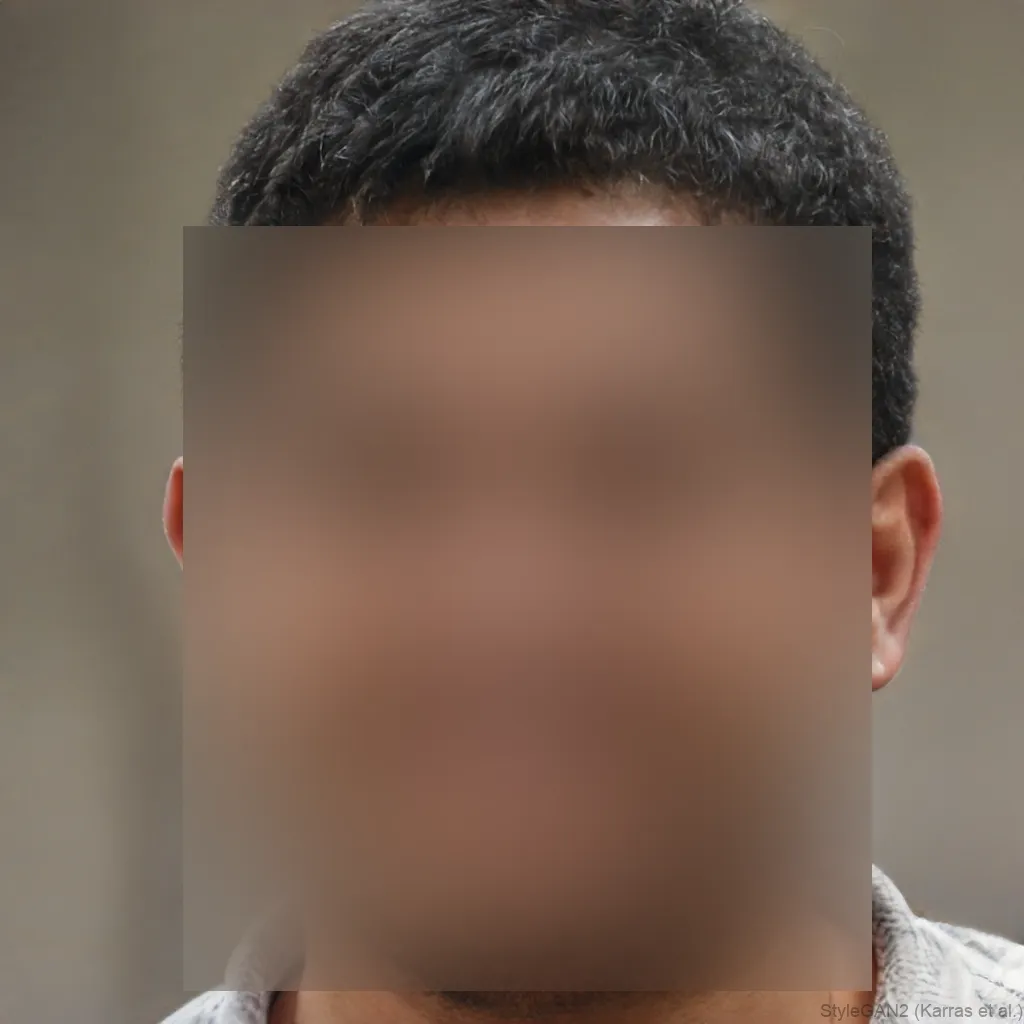
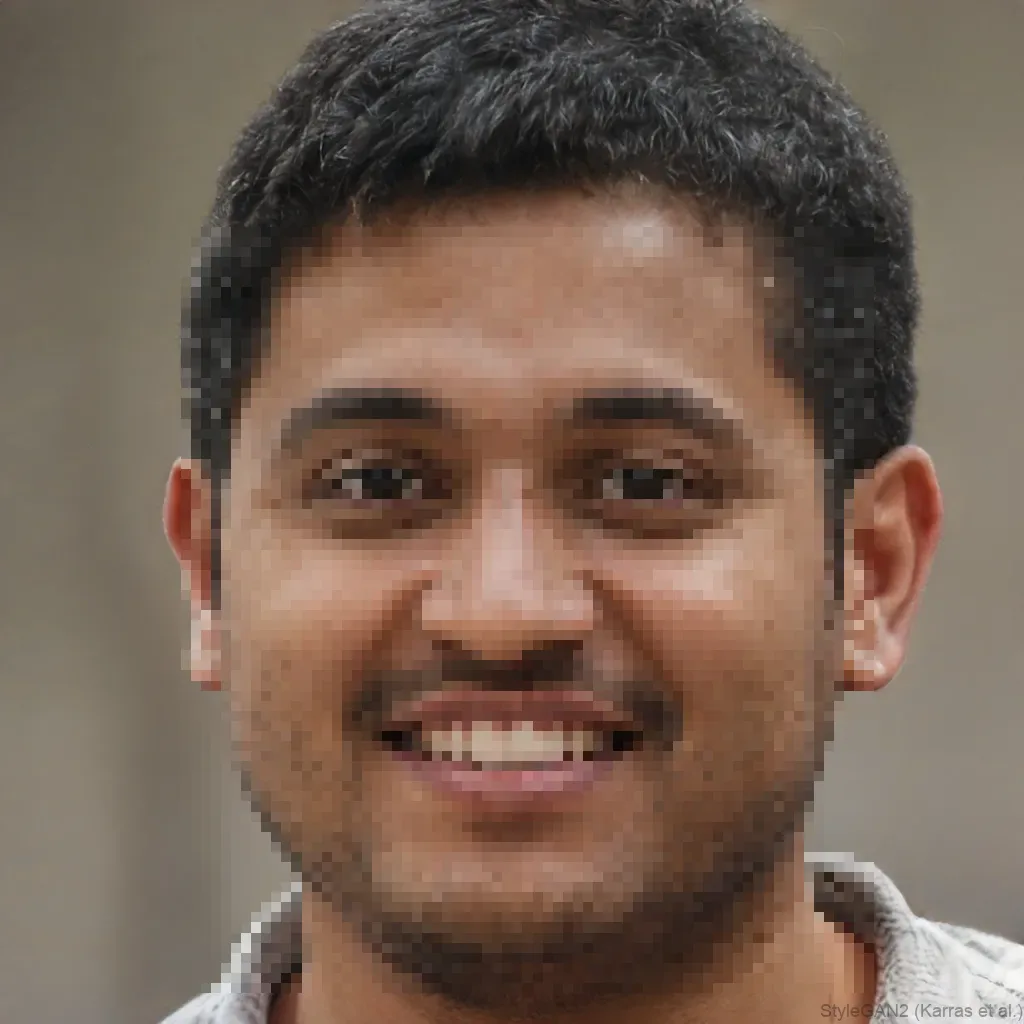
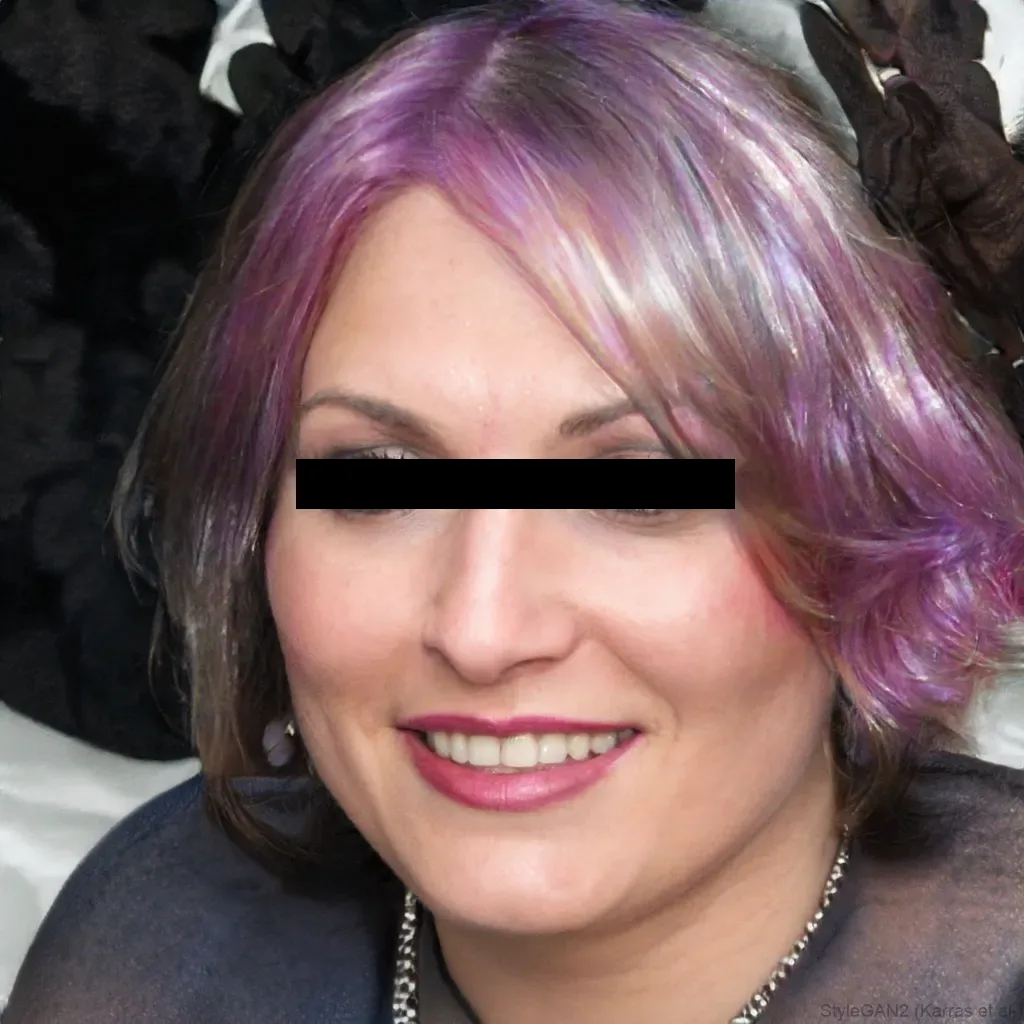
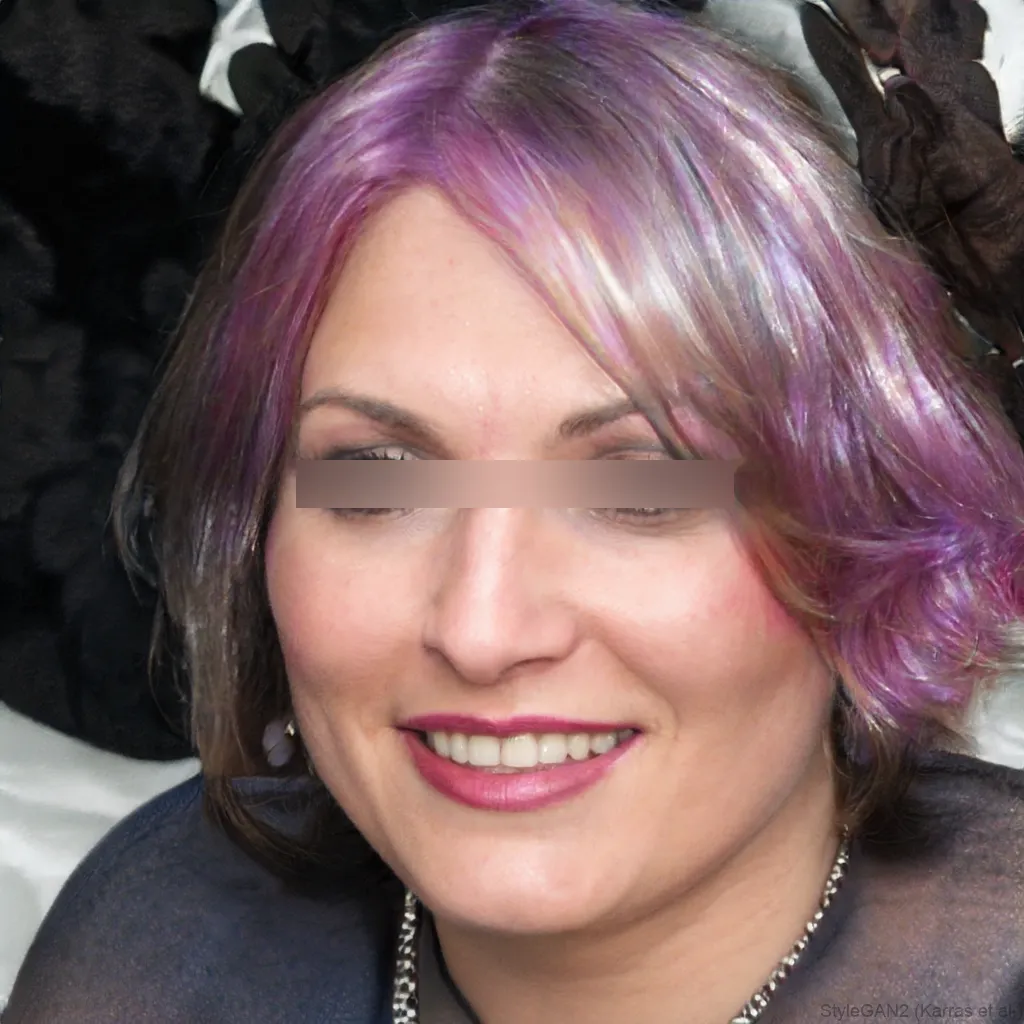
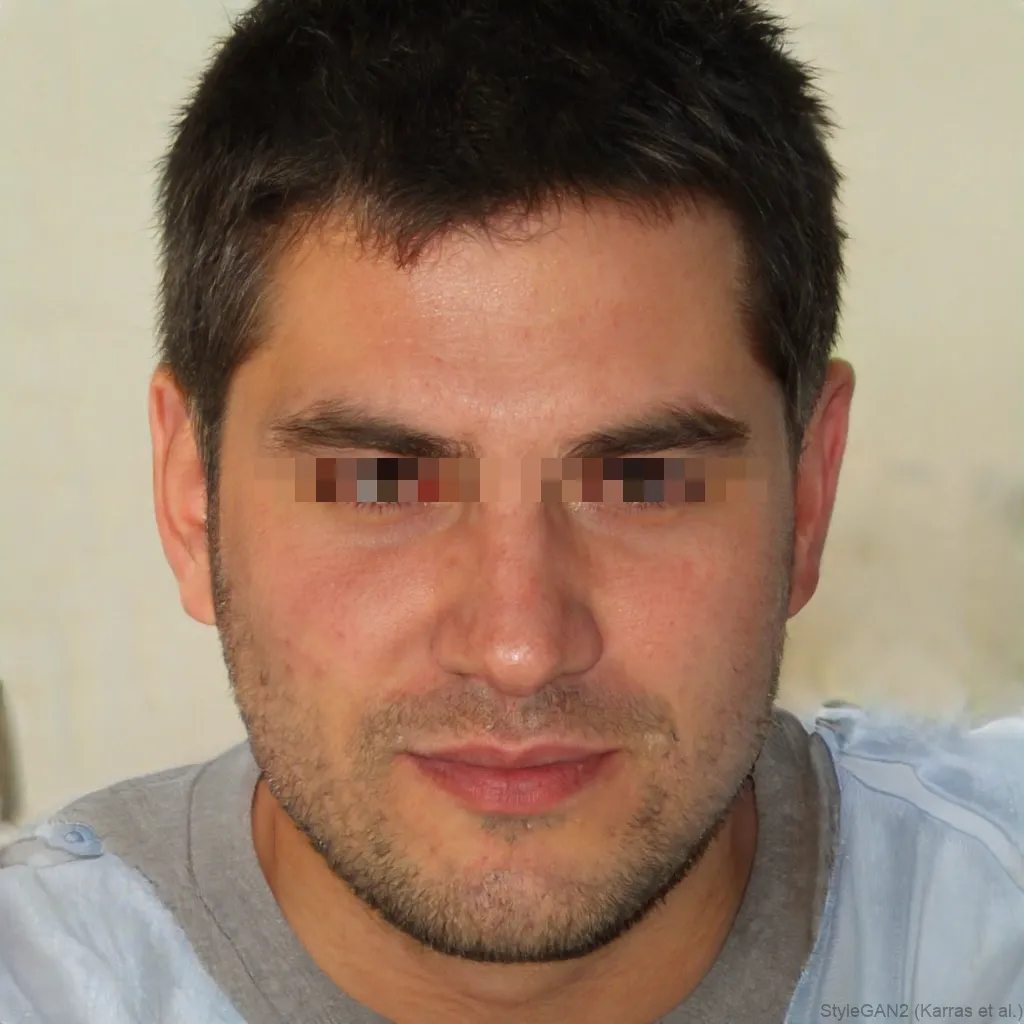
Need to remove someone from an image before you share it? blurfacephotos.com redacts a face in seconds, entirely in your browser. Black out the whole face, or blur or pixelate it, then download, no account and nothing uploaded to a server. It’s built for the moments where a face has to be gone for good: screenshots, scanned documents, incident reports, evidence and FOIA responses.
Redacting isn’t quite the same as a light blur. To redact is to remove information so it can’t be recovered, so the safest choice is a solid blackout over the whole face rather than a soft blur.
What does it mean to redact a face?
Redaction is the deliberate removal of information from a document or image so that it can’t be read or recovered. Applied to a face, it means covering the person so completely that they can’t be identified, and can’t be un-covered later. That’s a stronger bar than simply making a photo look tidy, which is why a solid blackout is the classic redaction tool.
Redact a face in a screenshot or document
Most face redaction starts with a screenshot or a scanned page: a support ticket, a chat log, a medical form, a police or insurance report. Take the screenshot, open it here, and the face is detected automatically. Choose the Black bar effect and the Whole face area, and the person is blacked out. Save the redacted copy and share that instead of the original.
Blackout, blur or pixelate, which is safe to redact with?
A solid blackout is the safest: it removes the pixels entirely, so there’s nothing left to recover. Pixelation is usually fine when it’s coarse. A light blur is the weakest, because a faint blur over a small face can sometimes be partially reversed by software. If a file could ever be scrutinised, black out the whole face rather than lightly blurring it.
- Black bar or blackout, strongest, nothing recoverable (recommended for redaction).
- Pixelate, safe when the blocks are coarse enough to erase features.
- Blur, fine for casual sharing, but use a strong blur over the whole face, not a light one.
Redaction, privacy and GDPR
Redacting faces is exactly the kind of step data-protection rules like GDPR encourage before personal data is shared or published. And because this tool runs entirely in your browser, the sensitive file is never uploaded to anyone, which matters when the whole point is to protect the person in it. (This is general information, not legal advice.)
Is redaction reversible?
Once you download the image, it’s flattened: the blackout, pixelation or blur is baked into the pixels and the original face underneath is gone from that file. A strong blackout can’t be reversed. Keep your original separately if you might ever need it, because the redacted copy is meant to be one-way.
How to do it, step by step
- 1Add the imageDrop in the screenshot, scan or photo. It opens locally in your browser and is never uploaded.
- 2Choose Black bar and Whole facePick the Black bar effect and set the area to Whole face for a full blackout, or Eyes for a lighter redaction.
- 3Download the redacted imageExport the result as a PNG. The redaction is permanent in the downloaded file.
Frequently asked questions
How do I redact a face in an image?
Open blurfacephotos.com, add the image, choose the Black bar effect and the Whole face area, then download. The face is blacked out and the redaction is baked into the saved file.
What’s the difference between redacting and blurring a face?
Blurring softens a face; redacting removes it so it can’t be recovered. For redaction, use a solid blackout over the whole face rather than a light blur.
Is redacting a face reversible?
No. Once you download the image, the face underneath is gone from that file and a solid blackout can’t be reversed. Keep your original separately if you might need it.
Is it safe to redact photos online?
With this tool, yes, because nothing is uploaded. Detection and redaction run entirely in your browser, so the sensitive file never leaves your device. Server-based tools upload your file, which defeats the purpose.
How do I redact a face in a screenshot?
Take the screenshot, open it here, choose the Black bar effect and Whole face, then save the redacted copy. Share that version instead of the original.
Can I redact several faces at once?
Yes, up to five faces are detected and redacted in one pass, so you can black out a whole group in a single image.
How do I redact a face in a PDF?
Export or screenshot the PDF page as an image, redact the face here, then place the redacted image back into your document. This tool works on images, not PDF files directly.