How to put a black bar over the eyes (free)
Drop the classic black censor bar across the eyes in seconds, free, private, right in your browser.
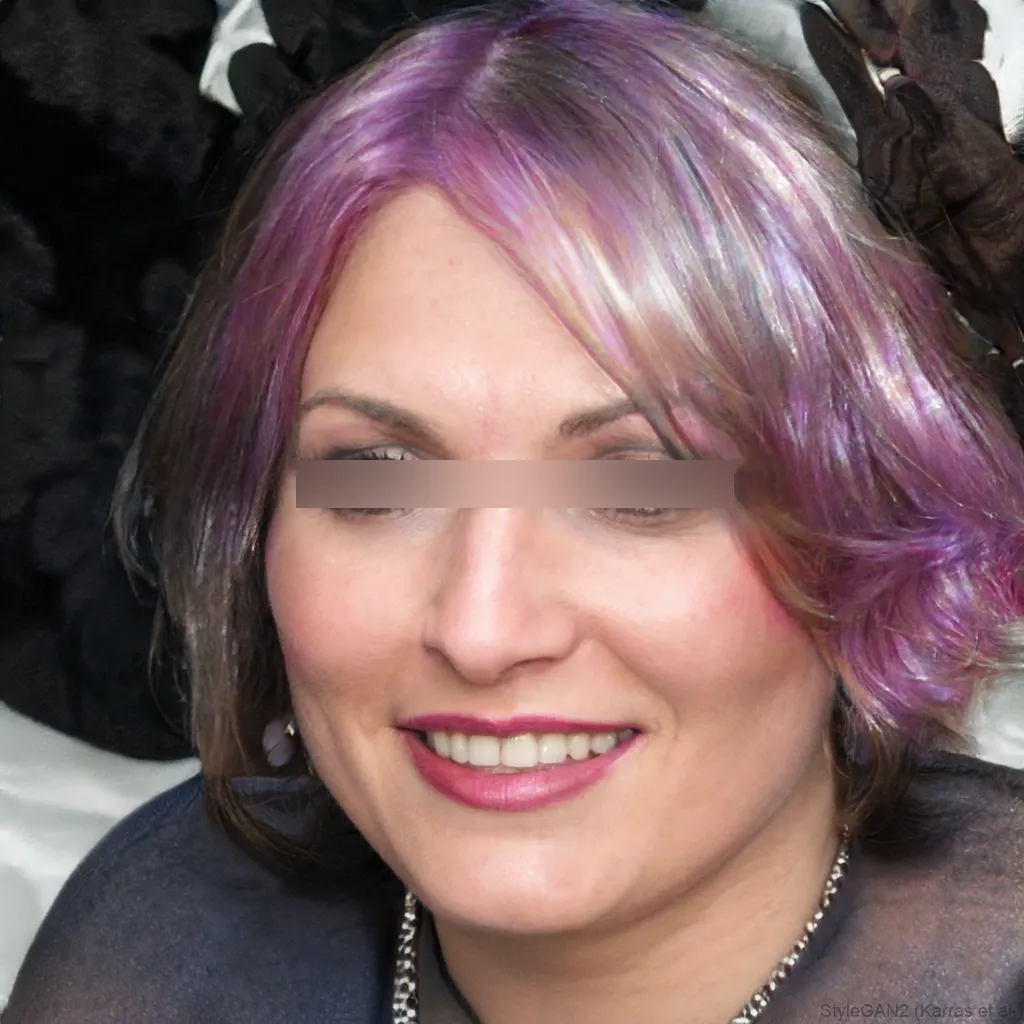
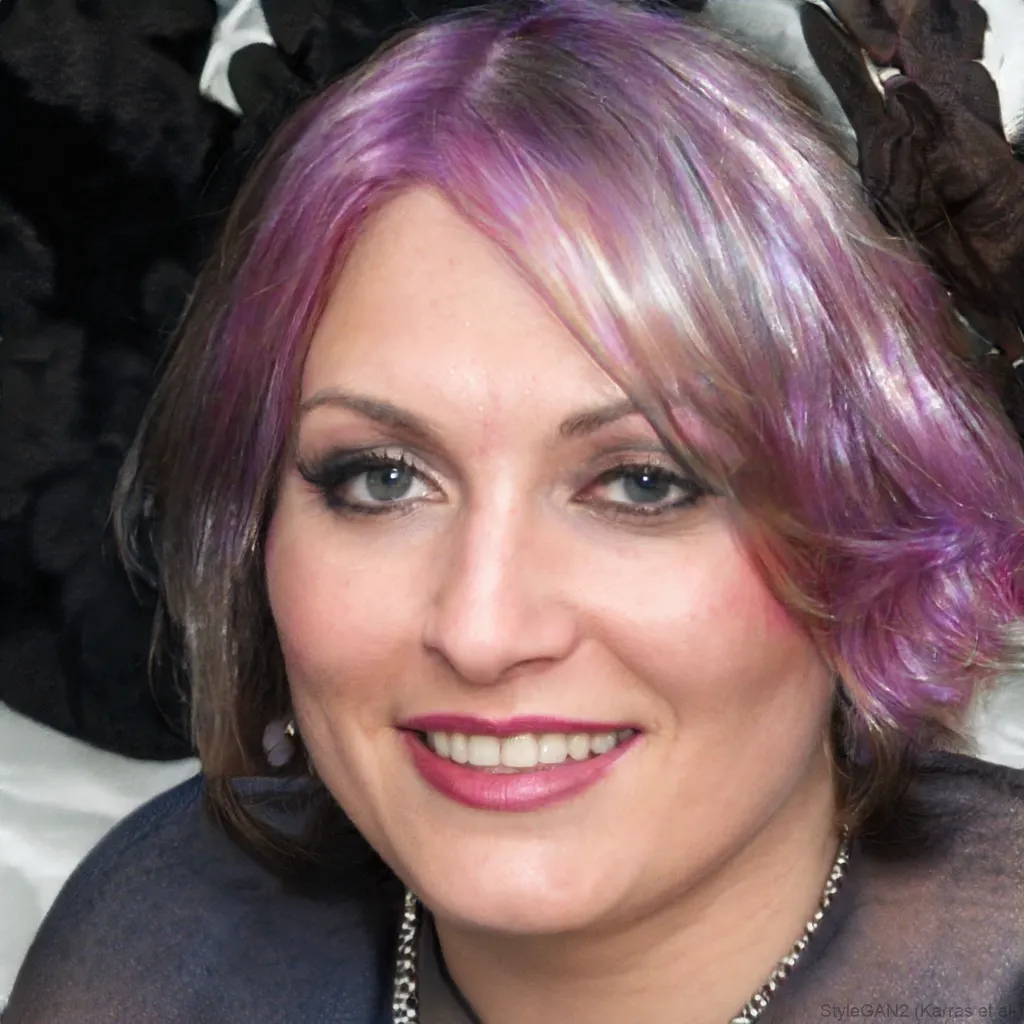 OriginalAnonymized
Drag to compare · original vs. anonymized
Drop photos here, or click to upload
JPG, PNG or WebP · free, no watermark
The classic censor bar
A solid black bar placed across the eyes automatically, the instantly recognisable censored look.
Nothing is uploaded
Face detection and blurring run entirely in your browser, so the file never leaves your device, ideal for privacy and GDPR.
Free & instant
Add the bar to a single photo for free, with no account and nothing uploaded.
Styles
Different ways to hide a face
Blur, pixelate, black bar, emoji and more, switch the effect and the area (eyes, mouth or whole face) with one click.
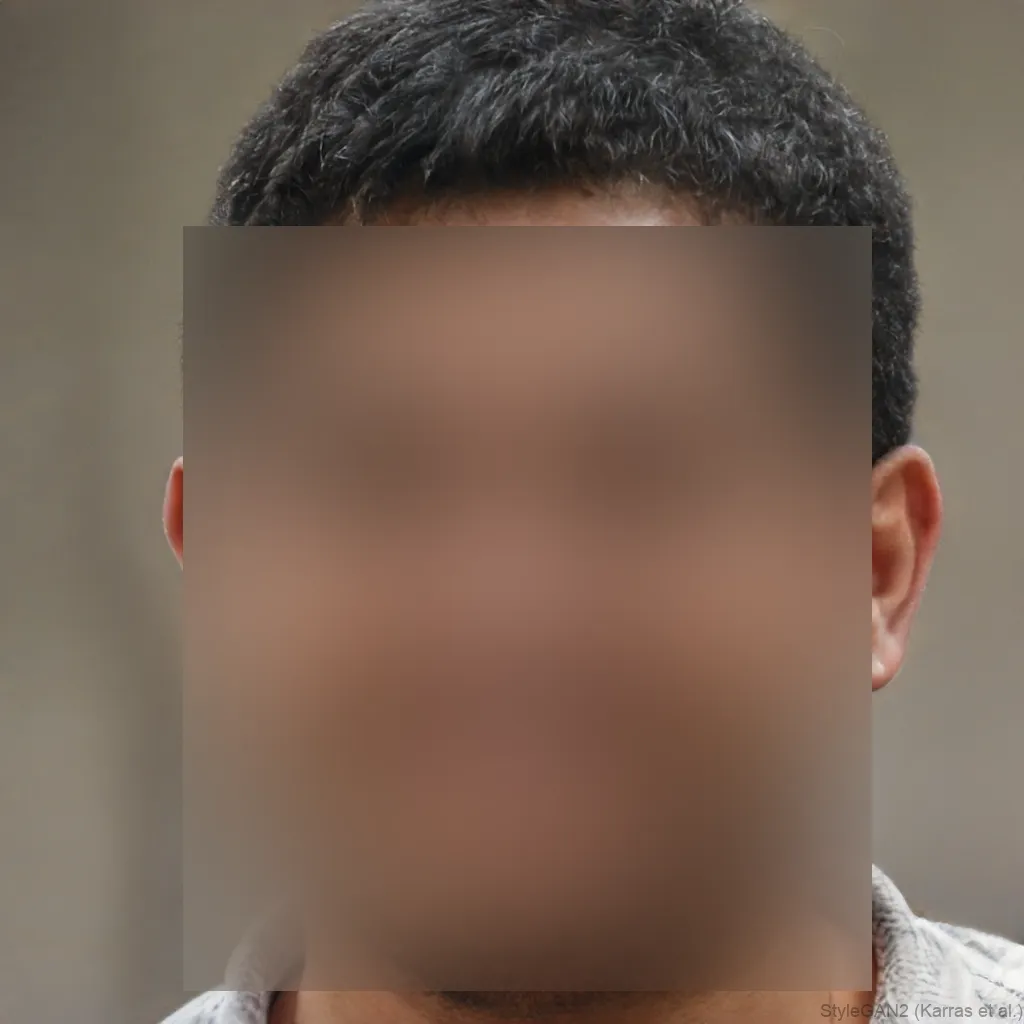
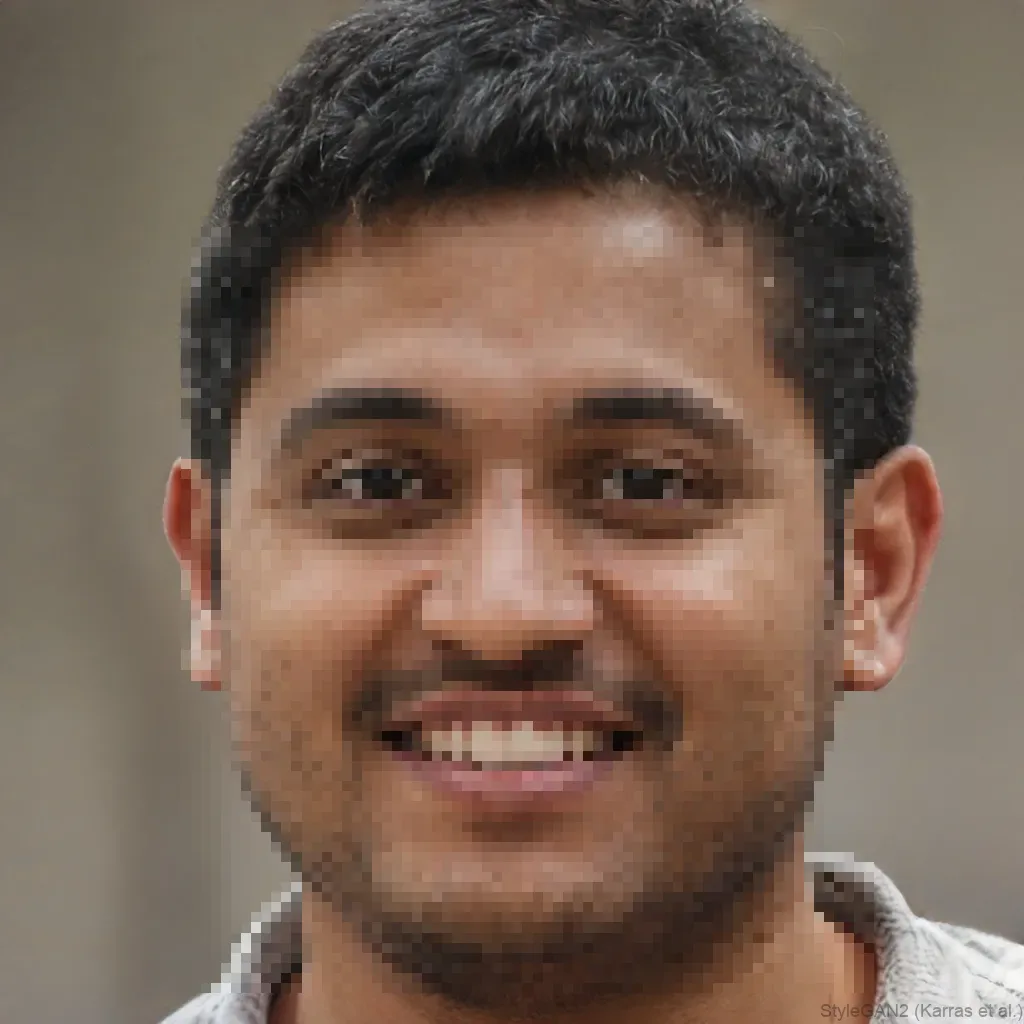
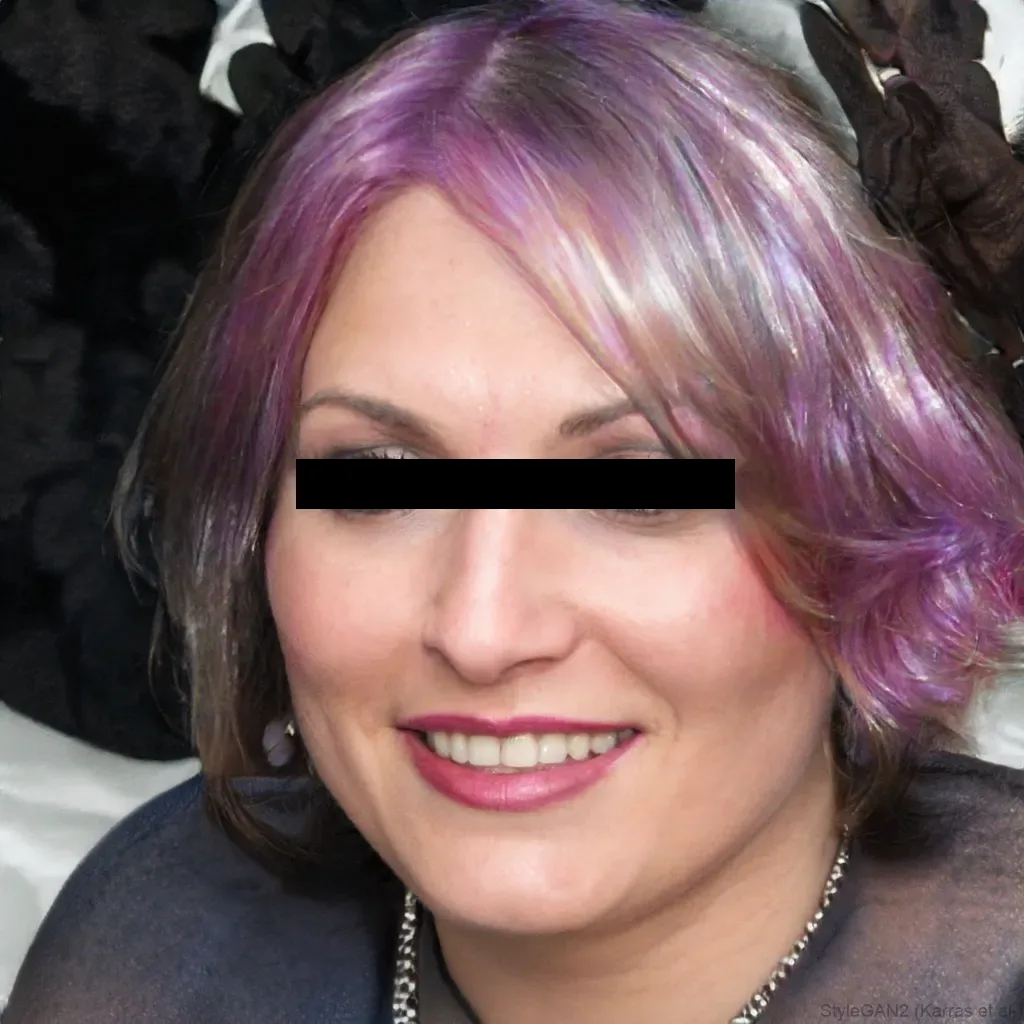
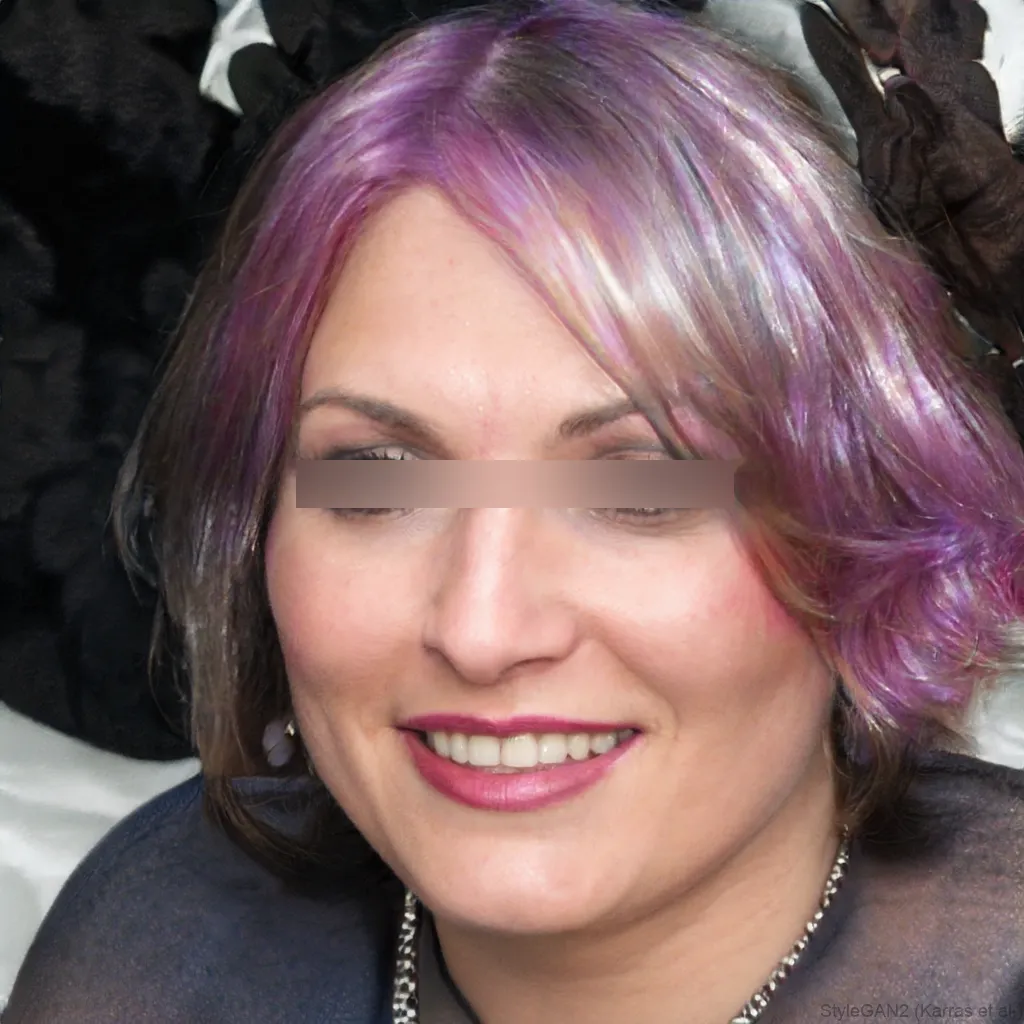
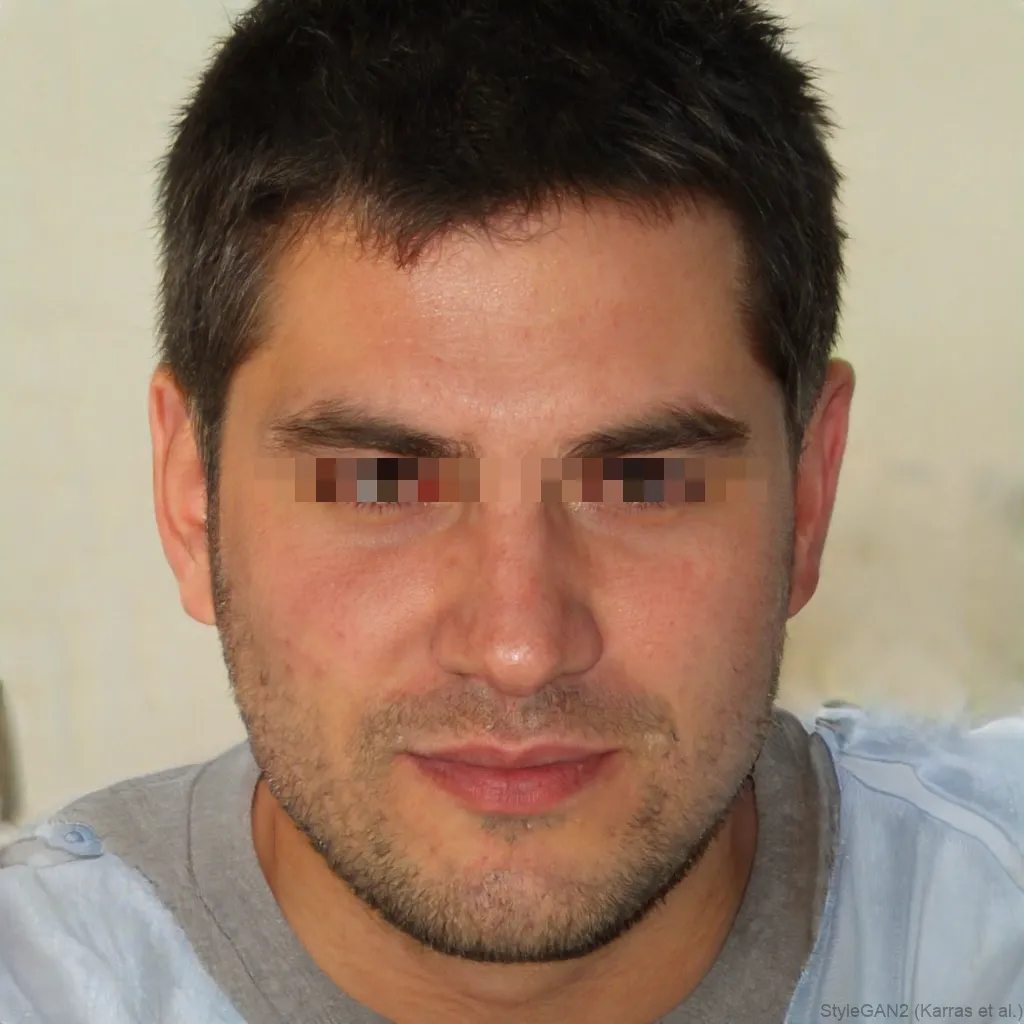
A black bar over the eyes is the classic way to censor a face: bold, obvious and instantly readable as deliberately hidden. blurfacephotos.com places a solid bar across the eyes for you, no drawing rectangles by hand. Pick the Black bar effect and the Eyes area, and the bar is positioned automatically, all in your browser with nothing uploaded.
Want more than the eyes hidden? Switch the area to the whole face, or swap the black bar for a white bar, blur or pixelation.
The classic black bar over the eyes
The eyes-only black bar is the iconic censored look you have seen on documents, memes and news images for decades. Choose the Black bar effect with the Eyes area, and a solid bar is placed across the eyes of every detected face automatically, so it lines up cleanly without you dragging a rectangle into position.
Black bar, white bar, blur or pixelate
The black bar is the boldest option, but it is not the only one. A white bar works better on dark images, a blur is softer and more natural, and pixelation reads as a mosaic. You can switch between them in one click and compare, then pick whichever suits the photo and the message.
Cover the whole face instead of the eyes
A bar over the eyes hides identity in most photos, but the nose, mouth and jaw can still give someone away. For stronger anonymity, switch the area from Eyes to the whole face so the bar or blur covers everything, not just the eye line.
Is a black bar over the eyes enough to hide identity?
It hides the single most recognisable feature, but a determined viewer can sometimes still identify a person by hair, jaw or context. If real anonymity matters, cover the whole face rather than only the eyes, or use a strong blur or pixelation over the entire head.
Where the black bar over eyes comes from
The black bar over the eyes has been used to signal identity withheld since long before digital editing existed. Newspapers and tabloids covered a person's eyes with a strip of tape or ink in printed photos, often for court reports, police stories or anything involving a minor, so the picture could run without formally naming anyone. Court exhibits, police files and government document scans later used the same trick, a thick black rectangle over a face, which is why the look still reads as official and redacted rather than edited for fun.
That history is exactly why the black bar censor meaning stuck: it says identity withheld, not just face hidden. Internet culture picked it up and ran with it, and the eyes-only bar became the visual shorthand for anonymous sources, witness protection jokes, tabloid screenshots and the deadpan redacted meme format. A blur or pixelation can look like a technical glitch, but a black bar over the eyes reads instantly as a deliberate choice, which is part of why it is still the most recognisable censor style online.
When to reach for a bar instead of a blur or pixelation
A blur or pixelation is usually the better pick when you want the photo to still look natural, a face that is softly out of focus reads as candid rather than censored. Reach for a bar instead when you want the opposite effect, a photo that unmistakably signals this identity is being protected on purpose, such as a leaked screenshot, a witness photo, a meme template or a before-and-after comparison where the censoring itself needs to be obvious at a glance.
The choice between a black bar and a white bar censor usually comes down to the photo underneath. A black bar reads cleanly on light skin tones and bright backgrounds, while a white bar censor stands out better on dark photos, night shots or images with a lot of black clothing or shadow, where a black strip can blend in. Try both, the effect switches in one click, and use whichever bar has the strongest contrast against the eye area in that specific photo.
What a clean eye censor bar looks like
Because the tool finds the eyes and places the bar for you, you are not dragging a rectangle around by hand. A clean bar sits level across both eyes, reaches a little past the outer corner of each so no sliver of eye shows, and leaves the eyebrows just visible above it, which keeps the photo readable as a face while fully hiding the eyes.
On a group photo, the same bar is applied to every detected face at once, so you get a consistent look across the whole image instead of mismatched hand-drawn boxes.
Using an eye censor bar in memes and social posts
On memes and social posts, the eye censor bar works partly because everyone recognises the visual grammar instantly, a black strip over the eyes says redacted or anonymous without needing a caption. It shows up constantly on reaction image templates, gossip and drama recaps, and screenshots of messages where a bystander's face happens to be in frame. Keep it bold and simple for this use, a plain solid black or white rectangle reads better at meme size than a soft blur, which can turn to mush once the image is resized and reshared a few times.
A black bar as a quick privacy step before you publish or share
Adding a bar across the eyes is a fast, visible way to apply data minimisation before a photo goes anywhere public, which is one of the ideas behind GDPR and similar privacy rules, only share what you actually need to. It is a reasonable first pass for a blog post, a support ticket screenshot, a classroom photo or a crowd shot from an event, where bystanders never agreed to be identified online. Because the edit happens in your browser, no copy of the original photo is uploaded anywhere, so you are not creating a second privacy problem while trying to fix the first one.
How to censor eyes on iPhone and Android
- On iPhone, open blurfacephotos.com in Safari, add a photo from your camera roll, choose the Black bar effect and the Eyes area, then save the censored photo straight to Photos, no app store download needed.
- On Android, open the same page in Chrome, upload or take a photo, apply the bar the same way, and save the result to your gallery.
- iPhone's Markup tool can draw a black box by hand, but you have to size and place it yourself on every photo, one at a time, with no automatic eye detection.
- Because the whole process runs in the browser, nothing is uploaded from either phone, so it works the same whether you are on wifi or not.
How to do it, step by step
- 1Add your photoDrop your image into the editor above, it opens locally and is never uploaded.
- 2Choose Black bar and EyesSelect the Black bar effect and the Eyes area for the classic look, or the whole face for more cover.
- 3Download the censored photoExport the result as a PNG, ready to share.
Tips and common mistakes
- The bar is solid black or white, which reads as a deliberate edit rather than a grey smudge that looks like a glitch.
- If a sliver of eye still shows on a wide or angled face, switch the area to the whole face so nothing recognizable is left.
- The bar is sized to each detected face, so it scales automatically whether the person is close to the camera or in the background.
- Detection is most accurate on straight, front-facing eyes, so double-check heavily tilted or side-on faces before you save.
- Export at full resolution before you crop or resize, so the edge of the bar stays crisp instead of turning soft.
About blurfacephotos.com
blurfacephotos.com is a free, in-browser tool for hiding faces in photos and video. Alongside the classic black bar, you can choose a soft blur, a blocky pixelation, a white bar or an emoji sticker, and switch between them instantly to see which one fits the photo.
It works on photos, video and a live camera feed, and it can detect and censor several faces in one image at once, so a group shot, a classroom photo or a screen recording can be handled in a single pass instead of editing each face by hand. Batch processing is built in for anyone working through more than a handful of images at a time.
Everything runs on your device. No photo, video or camera frame is ever uploaded to a server, which matters when the images are sensitive. Photos are free and unlimited with no account, and Premium covers video export, unlimited batch and full HD.
Frequently asked questions
How do I put a black bar over the eyes?
Open blurfacephotos.com, add a photo, choose the Black bar effect and the Eyes area, and a solid bar is placed across the eyes automatically. Then download the result.
What does a black bar over the eyes mean?
It is the classic way to censor a face and protect someone's identity, hiding the most recognisable feature, the eyes, while keeping the rest of the photo visible.
Can I use a white bar instead of black?
Yes, a white bar works the same way and reads better on dark images. You can switch between a black and white bar in one click.
Does a black bar over the eyes fully hide identity?
It hides the most recognisable feature, but hair, jaw and context can still identify someone. For full anonymity, cover the whole face rather than just the eyes.
Can I add a black bar over the eyes on my phone?
Yes, it runs in Safari on iPhone and Chrome on Android, so you can add the bar and save the result without any app.
Is it free?
Yes, censoring a single photo is free with no account, and nothing is uploaded from your device.
Should I use a black bar, a white bar censor, or a blur to censor eyes?
Use a black bar on light photos and a white bar censor on dark ones, both read as a bold, obvious edit. Use a blur or pixelation instead if you want the photo to look more natural and less like a deliberate redaction.
How do I censor eyes on my phone?
Open blurfacephotos.com in Safari on iPhone or Chrome on Android, add the photo, choose the Black bar effect and the Eyes area, and save the result to your camera roll, no app install required.